
Run Claude Code agents in parallel (the cockpit)
The problem
Section titled “The problem”One Claude Code session is easy to follow. Three at once are not: which one is still working, which is waiting for you, and will two of them end up changing the same file? If they share one folder, they overwrite each other’s work. If you give each its own copy by hand, you lose track of the copies.
The idea
Section titled “The idea”Each agent works in its own worktree: a second folder for the same repository, on its own branch. Nothing one agent does touches another agent’s files, and everything is still one repository, so merging is an ordinary git merge.
The cockpit is the Worktrees view (Ctrl+5). On the left it lists your main folder and every agent, in
sections: Needs you first (a conflict, a failed check, a question), then Ready, Working and Other
(your own folder). Click one, and on the right you get its dossier: what it did, which files it changed, the diff,
and the one decision that is yours.
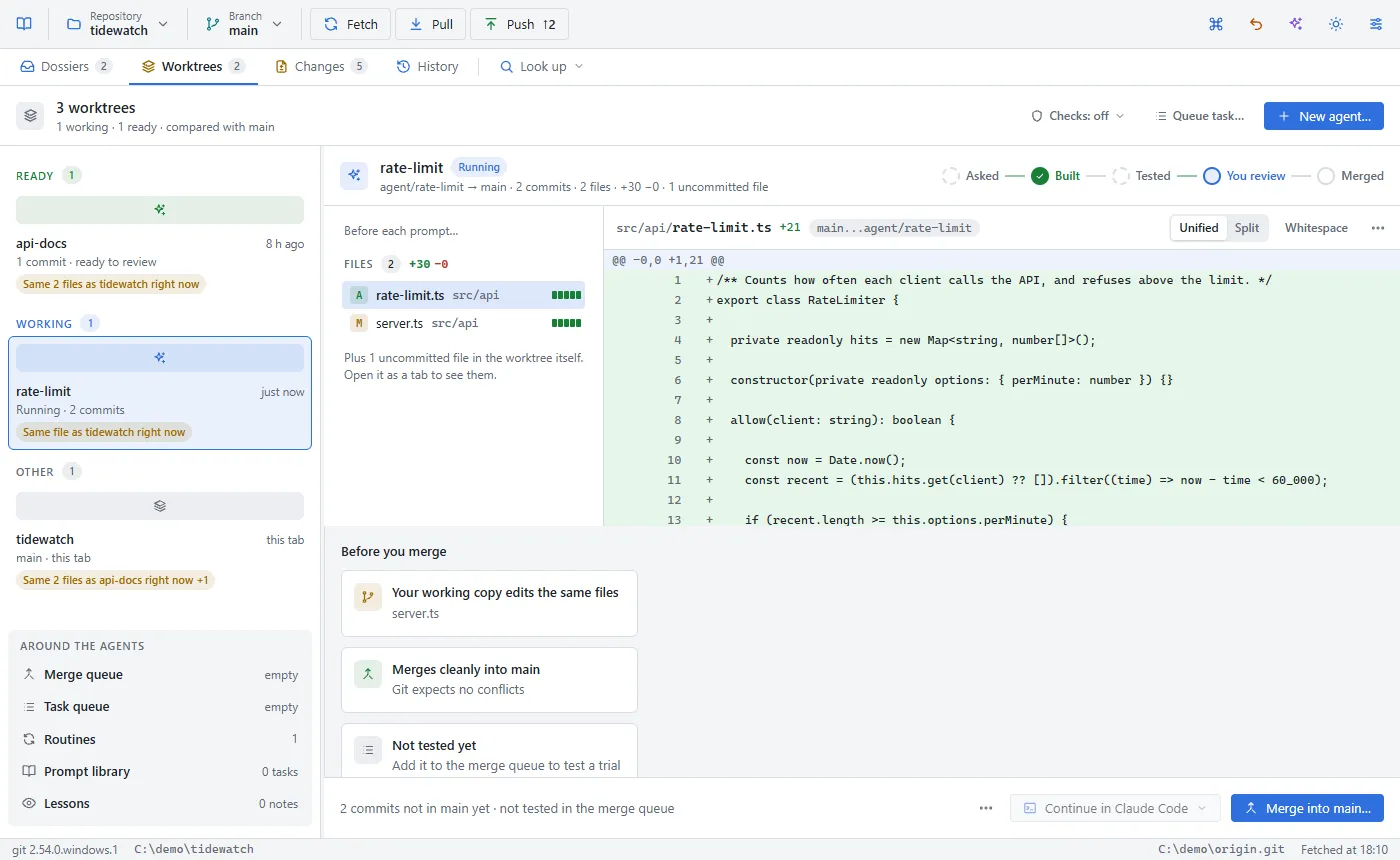
For each agent, the list shows:
- What it is doing. Running when Claude Code is working in it, Idle when it is not. An agent that reports its own progress shows what it says: Working, Waiting for you, Done or Blocked.
- How far it is. 1 commit · ready to review, or how many commits it has that main doesn’t. The dossier says the same with arrows: ↑2 ↓2 against main means two commits that main doesn’t have, and two commits of main that it doesn’t have. Next to that: the files that are not committed yet.
- Where it will clash. A small label under the row: Same 2 files as api-docs right now means that two worktrees are changing the same files right now, before either has committed. A conflict that a merge would cause is caught too, and puts the agent under Needs you.
At the top of the dossier, the steps Asked, Built, Tested, You review, Merged show where this agent is. Under Before you merge are the things to know first, such as Your working copy edits the same files or Merges cleanly into main, and whether the merge queue has tested it yet.
The clash check uses git merge-tree, which tries the merge in memory. No working folder is touched.
Start an agent
Section titled “Start an agent”Press New agent….
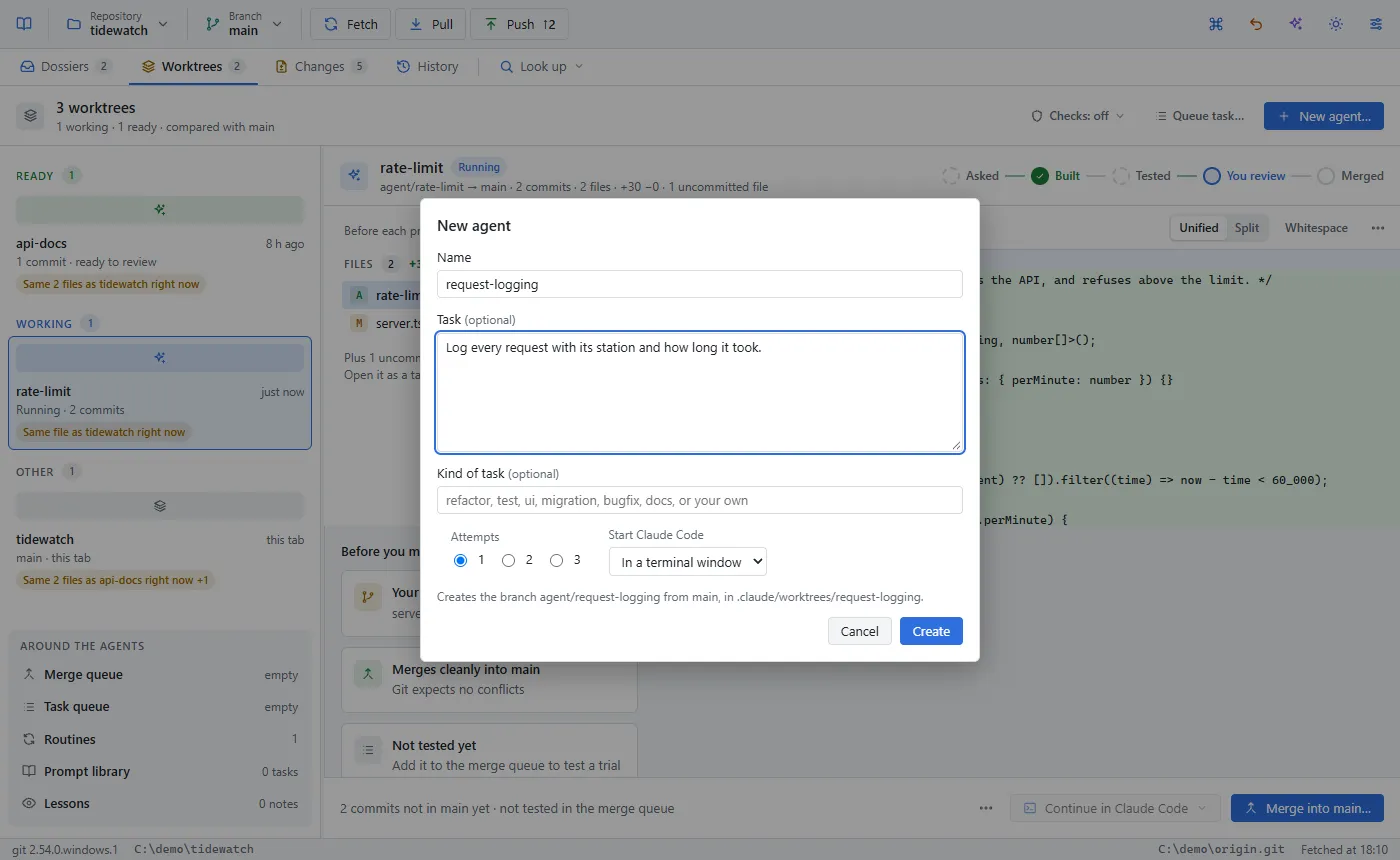
- Name becomes the branch
agent/<name>and the folder.claude/worktrees/<name>, made from your current branch. The dialog shows the exact names before you confirm. - Task (optional) is the first thing Claude Code is asked to do.
- Kind of task (optional) is a word of your own, such as refactor or bugfix, to find the task back in the prompt library.
- Attempts is 1, 2 or 3; see Try the same task more than once below.
- Start Claude Code says where it runs: in a terminal window, or inside the app.
The agent then appears in the list. Select it, and the bar at the bottom of its dossier holds what you can do:
| Button | What it does |
|---|---|
| Merge into main… | The main button. Merges the agent’s commits into your branch, with a merge commit. It changes with the state: Pick this one… for one of several attempts, Land in main… once the merge queue has tested it, Send back to <agent> when the queue found a problem |
| Continue in Claude Code | Menu: Start Claude Code (terminal), Start in app, or Open in Claude Desktop |
| ⋯ (More actions) | Add to merge queue (tests and reviews its work before it lands; see the merge queue), Create pull request… (see below), Fix CI failure, New agent on top…, Hand over… (a note from what the app knows about this agent, for a new agent; see Hand over to a new agent), Open as tab (the worktree as its own tab, with Changes, History and the rest), Copy path and Remove… |
Build on another agent
Section titled “Build on another agent”Sometimes agent B needs what agent A did, before A is in your main branch. Select A and press New agent on top….
The new branch starts on A’s branch (agent/b on agent/a) instead of on your own, so B begins with A’s commits.
The app remembers that B builds on A. The cockpit shows On top of a in B’s details. As long as A is not merged,
B says so in amber, and Merge into… and Add to merge queue stay off for B, with the reason as a tooltip. The
merge is also refused behind the scenes (parent_not_merged), because B contains A’s commits: merging B first would
bring A in without anyone looking at it. Merge A first. After that the note changes to already merged and B can
follow. If A’s branch is gone by then, nothing holds B back.
- Creating a pull or merge request for B is still possible, so a reviewer can see the stack.
- The chain is kept in the app’s settings, per repository, and is not in git.
When A landed as a squash or rebase merge
Section titled “When A landed as a squash or rebase merge”A normal merge of A puts A’s tip in your main branch, so B is let through by itself. A squash or rebase merge on the forge does not: the commits on main are new ones, A’s tip is not in main’s history, and B stays blocked behind “merge that one first”. For that case B’s details show Rebase onto <main branch>… next to the note.
The button asks for a plan first and shows a dialog with the commits of B itself (not A’s) that will be replayed on your main branch, oldest first. Rebase replays them in B’s worktree and removes the link with A, so B no longer depends on A and Merge and the merge queue are open again. The conditions are checked in the plan: B’s worktree has no uncommitted changes, no agent is running in it, there is no merge commit in the range and A is not merged already. If something stops it, the dialog says what, and Rebase stays off. If any of the commits is already on a remote, the rebase rewrites it: tick the box that says so, and force push the branch afterwards.
- If git stops on a conflict, the rebase keeps running in B’s worktree. Open that worktree as a tab and resolve it there, like any rebase. Once it is done, B no longer holds anything of A that is missing from your main branch, so Merge and the merge queue open again. This also holds when you rebase B onto your main branch yourself.
- If B’s branch moved since the dialog opened, the app refuses and you open the dialog again.
- There is no Undo line for this. B’s old tip is still in the reflog, and Lost & found shows it.
Queue tasks for later
Section titled “Queue tasks for later”If you have ten tasks, you do not start ten agents: the machine and your subscription cannot keep that up. Press Queue task… in the toolbar to put a task in the task queue instead. A task has a title, the task for Claude Code, and the number of attempts (1 to 3, as in best of N). Nothing starts.
The queue is on the board under the worktree list (Around the agents), the next task on top. Per task you can Start it, Edit… it, move it
up or down, or Remove it. Start next starts the top one. Starting makes the agent worktree (or the group
of attempts) and begins Claude Code in it, in the terminal panel, and takes the task out of the queue. The worktree
and branch are named after the title: Add the DB schema! becomes add-the-db-schema on agent/add-the-db-schema.
- If that name is already taken, the task stays in the queue and the app says so. Edit the title and start it again.
- The queue belongs to the repository and is kept in the app’s settings, not in the repository. An agent cannot change it. It holds at most 50 tasks.
- The app does not start the next task by itself, and tasks cannot wait for each other yet.
Routines and earlier tasks
Section titled “Routines and earlier tasks”On the same board is a list of Routines: ready-made tasks, such as Fix newly failing tests, that you start with Run now and that only propose a branch for the merge queue. Next to it is the Prompt library with every task you gave an agent and how it ended, and Use as template puts one of them in New agent…. Both are explained in Learn from what agents get wrong.
One task, several attempts (best of N)
Section titled “One task, several attempts (best of N)”Agents differ from run to run. Under Attempts in the dialog, choose 2 or 3, and the same task goes to that many agents, each in its own worktree. The cockpit groups them and offers Compare the attempts side by side. When you’ve seen enough, Pick this attempt… asks you to confirm, then puts the one you chose in the merge queue and removes the other attempts. Undo brings their branches back.
Knowing when Claude Code needs you
Section titled “Knowing when Claude Code needs you”When you start Claude Code with Start in app, the app asks it to report what it is doing. The tab of its terminal then says waiting for you (in amber) when Claude Code asks for permission or an answer, and idle when it is done and waiting for a new task. If you interrupt it with Esc, Claude Code sends no signal, so the app switches to idle by itself when nothing more comes in for a moment. While it is waiting for you, the app does not type anything into it: a stray Enter would pick the highlighted option, often Yes. A request from the merge queue then goes to the clipboard instead.
This adds to your own Claude Code settings and hooks; it does not replace them. In a folder Claude Code does not trust yet, it first asks whether to trust it, and until then there is nothing to report. The app then falls back to watching the screen, as before. A Claude Code that you started yourself, in your own terminal or in Claude Desktop, is not followed.
Notifications
Section titled “Notifications”You do not have to watch the tab. While the app is not the window in front, it shows a desktop notification when:
- an agent asks for permission or an answer, in the terminal or through
report_status; - an agent reports that it is done, or that it is blocked;
- a branch in the merge queue is ready to merge, fails or conflicts with main.
Clicking a notification brings the app forward and opens the Worktrees view with that agent selected. Each kind can be turned off under Settings → Notifications. The same question reported twice, by the hook and by the agent, gives one notification. The app registers itself with Windows to show them, which is a few entries under your own user in the registry.
Review on the forge instead of merging here
Section titled “Review on the forge instead of merging here”Not every team merges on one laptop. If the remote is on GitHub, GitLab, Forgejo or Gitea (Codeberg), a worktree with its own commits gets Create pull request… in its menu and next to Merge into main… (GitLab calls it a merge request, and the app follows). The dialog suggests the title and the description from the merge dossier: what was asked and what the agent did. Change them if you like, pick the branch it should go into, and press Push and create.
Optionally you can also tick Create as a draft, name Labels and ask Reviewers. Labels must already exist in the
repository (the app does not create them) and reviewers are user names on that forge, both separated by commas. The request is
made first; if the forge refuses a label or a reviewer (an unknown name, a token that may not do it), the app tells you which one
in the notice and leaves the request as it is. On GitHub a draft is a real draft; GitLab and Forgejo or Gitea mark it with a
Draft: or WIP: prefix in the title.
The app pushes the branch to the remote, asks the forge to create the request, and opens its page in your browser. It never forces a push: if the branch on the remote is further along, you get the usual push rejected. If there is already an open request for that branch, the app finds it and opens that one instead (“Opened the existing pull request”), so pressing the button twice does no harm.
This needs a token the app can use: the login git already has for an https remote (the Git Credential Manager has it for GitHub, GitLab and others), or, for an SSH remote or your own server, a token you paste under Settings → Credentials → Forge tokens. Logins and privacy says how to make one and which rights it needs. Nothing appears for a forge the app does not know. What the app sends, and to whom, is listed in Logins and privacy.
The forge decides what happens next: reviews, checks and the merge itself take place there.
Following the request
Section titled “Following the request”Once a branch has a pull or merge request, select its worktree and a box at the top shows the request: the title, whether it is open, merged or closed (or a draft), who wrote it, how many comments it has, whether the checks passed, whether it can be merged, and each reviewer with what they said (asked, approved, asked for changes, commented). Open on forge takes you there; Refresh reads it again. The app only reads: replying to a review or merging happens on the forge.
This works for GitHub, GitLab and Forgejo or Gitea (Codeberg). It finds the request by the name of the source branch, so a request from a fork is not found on GitHub. A public repository needs no token; a private one needs the same token as above. Nothing appears for a remote whose forge the app does not know.
The comments of the reviewers
Section titled “The comments of the reviewers”Press Comments in that box to read the conversations on the request: the comments on a line of the diff, with the file and the line, and the comments under the request itself, each with who wrote it and the replies. Open on a conversation takes you to it on the forge. Conversations the forge marks as resolved are hidden until you tick Show resolved. The text of a reviewer is shown as plain text.
The conversations that are still open are ticked. Send to agent gives the agent of this branch the ticked ones as one task: the file, the line and what the reviewers wrote, and the instruction to change the code and commit. If Claude Code runs in a terminal of the app, the task is typed in there; otherwise it is copied, ready to paste. At most 30 conversations go at once. Because the comments are written by other people, the task tells the agent to treat them as a description of a change, and secrets in them are left out.
GitHub does not tell its resolved conversations apart in the interface the app uses, so there they all show as open. GitLab needs a token for this, also on a public project.
Go back to before a prompt
Section titled “Go back to before a prompt”An agent can go the wrong way after your third instruction. Claude Code has its own checkpoints, but you do not see them next to git. For an agent you started with Start in app, the app saves a snapshot of its worktree just before each prompt, with the first line of the prompt as its label. Select the agent and the panel shows Before each prompt: the last eight prompts, with the time and how many files were changed at that point.
Press Rewind to here… on a prompt to put the files of the worktree back as they were just before it. What the agent changed since then is undone, and what it added is removed. The app first saves the current state as a snapshot, and Undo brings it back.
- Commits stay. Rewind only brings back files. If the agent committed since then, the app refuses and says so: reset the branch first (see History), or pick a newer prompt.
- Interrupt the agent first (Esc in its terminal). Otherwise it may write files while the app puts them back.
- Files that git ignores (like
node_modulesor build output) are not part of a snapshot and are left alone. - The prompt text is stored in the snapshot, with passwords and tokens replaced. The snapshots follow the same retention as the others (a week by default, see Settings).
- Prompts typed in a Claude Code that you started yourself, outside the app, are not followed.
When the CI on the forge fails
Section titled “When the CI on the forge fails”The merge queue tests a branch on your machine. On a team repository the real CI runs on the forge, and it can fail on something that passed here. Select the agent’s worktree and press Fix CI failure. The app asks the forge which job failed for the commit the agent is on, fetches the end of its log, and gives it to the agent as a task: at most 100 lines, without colour codes or timestamps, and with passwords and tokens in URLs and headers replaced. If the agent runs in a terminal of the app, the task is typed into it; otherwise it is copied to the clipboard.
- GitHub: the log of the failed Actions job. GitHub only gives logs to a signed-in user, so without a token the agent gets the check’s own summary and the link.
- GitLab: the trace of the first failed job of the newest failed pipeline.
- Forgejo and Gitea: the name, the description and the link of the failed run. Their API does not give logs. On Codeberg Forgejo Actions leaves no status on the commit, so the app reads the jobs of the run from the Actions list instead.
If the forge reports no failed job, the app says so and sends nothing. Push the branch first: the forge only knows commits it has.
Boundaries: places agents should not touch alone
Section titled “Boundaries: places agents should not touch alone”Some files should not change without your say-so: database migrations, CI configuration, a lockfile. The Boundaries button (it says No boundaries until you add some) opens a list of paths, each with a reason. Then:
- agents hear about a boundary before they edit a file inside it,
- the cockpit marks a worktree that crosses one,
- merging such a worktree asks you to look first.
A boundary is a request and a warning, not a lock: it makes sure you see the change, it doesn’t forbid it.
Under the hood
Section titled “Under the hood”A worktree is git worktree add, with a new branch from your current one. Claude Code marks a worktree
as locked while it works in it, and the cockpit reads that as Running. The clash check is
git merge-tree. Merging an agent is git merge --no-ff, so History shows what came from which agent.
When it goes wrong
Section titled “When it goes wrong”- An agent shows a clash with itself or an old agent. Remove worktrees you no longer need; Prune clears worktrees whose folder is gone.
- Start Claude Code and Remove… are grayed out. An agent is already running in that worktree. It is locked while it works, so you can’t start a second one in it or remove it from under it. Open in Claude Desktop follows the same rule. Remove… is also unavailable for your main folder and for a worktree you have open as a tab.
- Add to merge queue and Merge into main… are grayed out. The agent has no commits yet, so there is nothing to merge. They also need you to be on a branch, not on a detached HEAD.
- Create pull request… is missing. The worktree needs commits that main doesn’t have, and it can’t be your main folder or the worktree you are looking at in the current tab. The remote must also be on a forge the app can talk to: GitHub, GitLab, Forgejo or Gitea. Bitbucket and Azure DevOps are recognised but can’t create requests from the app.
- “The app has no login for this forge”. The app uses the login git has stored for an https remote, or a token under Settings → Credentials → Forge tokens. With an SSH remote git has no login the app can use, so add a token there (see Forge tokens). Nothing was pushed.
- “The forge refused the login or does not allow this”. The token is expired, or it may not create requests. Make a new one with the rights listed under Forge tokens, and paste it again.
- “There is already an open request for this branch and base”. Open it on the forge instead.
- You removed an agent too soon. Its branch and commits are in the reflog; see Lost & found.
Related
Section titled “Related”The merge queue is where an agent’s work is checked before it lands. Review an agent’s work is how you read it. Learn from what agents get wrong covers rejecting, rules, routines and handovers. In History the branches of your agents have their own colour and label.