
Resolve a merge conflict
The problem
Section titled “The problem”You merge a branch and git stops: both of you changed the same lines. Git can’t know whose version
is right, so it writes both into the file between <<<<<<< and >>>>>>> markers and waits for you.
Reading those markers in a text editor is error-prone, and it is easy to commit one by accident.
The idea
Section titled “The idea”A conflict is easier to judge when you see three things instead of two:
- Ours: the version on the branch you are on.
- Theirs: the version on the branch you are merging in.
- Base: how the lines looked before either of you changed them.
With the base you can tell what each side actually did. If theirs only added a line to the base and ours only fixed a typo in it, you want both. Without the base, two different texts just look different.
The merge editor shows all three above one Result that you can edit freely, and the headers carry the real branch names, so you don’t have to remember which side is which.
How to use it
Section titled “How to use it”-
When a merge stops, a bar appears at the top: Merging origin/agent/api-docs into main, with how many files still have a conflict. Open Changes: the files are listed under Conflicts.
-
Pick a file. For the whole file you can press Keep version from main or Keep version from … (the other side), or Delete file when one side deleted it.
-
Otherwise work through the conflicts one by one. The toolbar says Conflict 1 of 1 (line 9), and ‹ › move to the previous and next one. For the conflict you are on, choose:
- Ours or Theirs: take one side.
- Both, ours first or Both, theirs first: keep both, one below the other.
- Base: go back to the original.
Or just edit the result yourself. It is a real code editor with undo (
Ctrl+Z) and search (Ctrl+F), and right-clicking a conflict offers the same choices.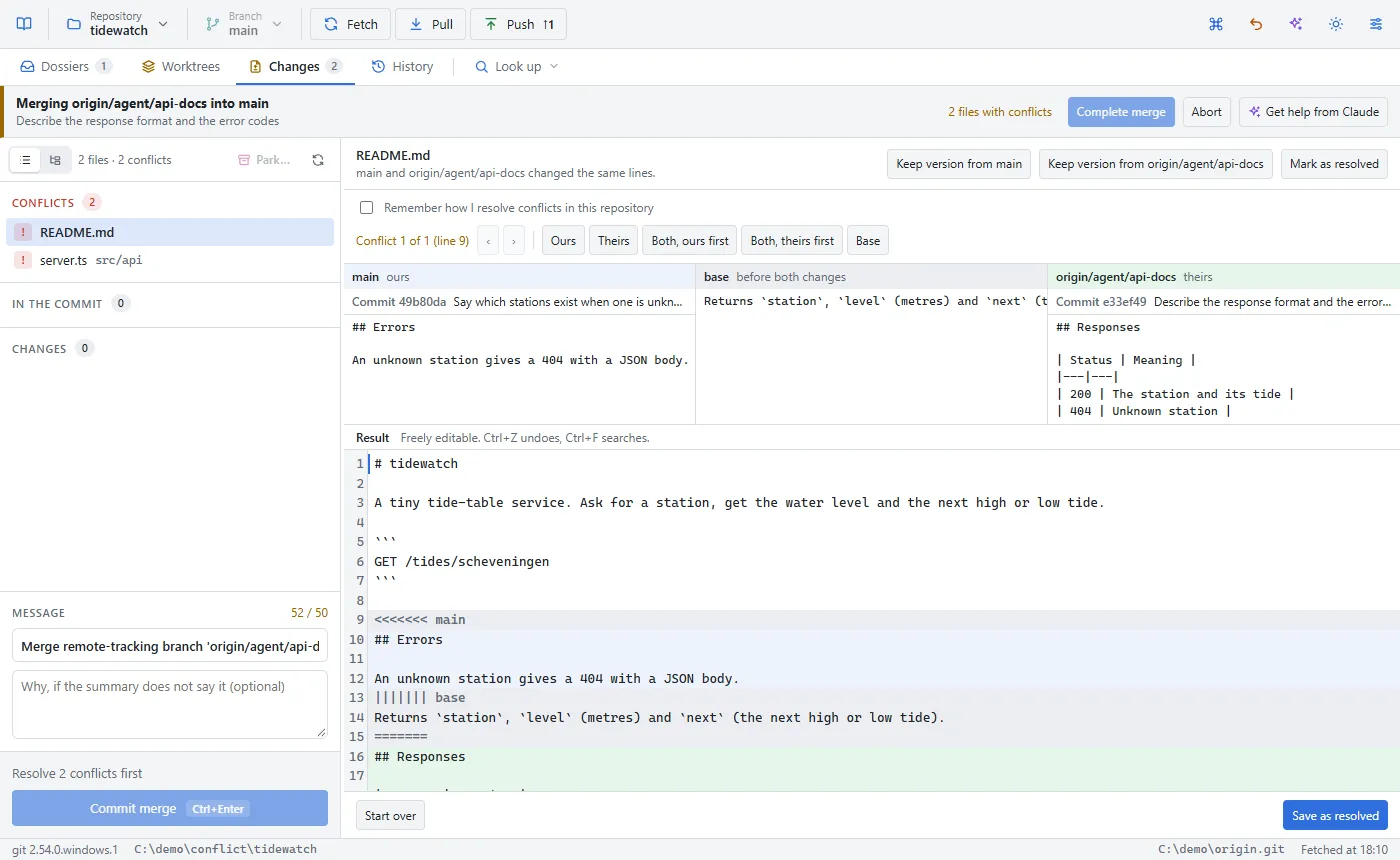
-
When no conflict markers are left, press Save as resolved. The app stages the file. Start over brings the conflict markers back.
-
When every file is resolved, the bar changes to No conflicts left. Press Complete merge to commit, or Abort to forget the whole merge and go back to how things were.
If you resolved a file in another editor, press Mark as resolved to tell the app.
See what each side wanted
Section titled “See what each side wanted”A conflict shows two pieces of text, but not why they differ. If you have to guess what both sides were trying to do, you resolve it wrong. So above each side the editor shows a few lines of intent, when the app knows them. For each side it uses the first source that has something, and it never makes anything up:
- Request and the short hash of a commit: the question and approach that an agent recorded for the commits of that side that touched the file (see Why this commit);
- otherwise Agent task: the task that a best-of-N group gave the agent of that branch;
- otherwise Commit and the short hash: the subject line of the commit;
- otherwise nothing.
At most three lines per side are shown, and and N more says how many were left out. Hover for the whole text. Two limits to know: a task only comes from a best-of-N group, not from an agent you started on its own (a single agent has no stored task); and in a rebase the notes belong to the original commits, so ours falls back to the commit message.
Let Claude suggest a resolution
Section titled “Let Claude suggest a resolution”With an Anthropic API key in Settings, the toolbar has Suggest with Claude. Claude proposes a
result for every conflict and explains each choice. It gets the intent of both sides too (after secrets are removed),
and is told to say so when the two intents exclude each other, in which case the choice is yours. There is no separate flag for that, only its explanation. Nothing is saved: you read the suggestion, change
it if you like (Ctrl+Z undoes it) and save it yourself. The file is sent to Anthropic for this, so
leave it out for files you can’t share.
Remember how you resolved a conflict
Section titled “Remember how you resolved a conflict”In a long rebase, or in a merge you have to repeat, the same conflict can come back several times. Git can remember how you resolved it and apply that resolution the next time. This feature is called rerere (“reuse recorded resolution”).
Above the editor there is a checkbox, Remember how I resolve conflicts in this repository. It sets rerere.enabled
in the configuration of this repository. It is off by default, and it only affects conflicts that come after you turn it on.
When a conflict returns that you resolved before, the panel says Resolved before: git put your earlier resolution in the file. The editor still shows the conflict itself, so you decide what happens:
- Use the remembered resolution takes the text that git put in the file as the result and marks the file as resolved.
- Forget it makes git forget that resolution. The file gets its conflict markers back, and the file as it was goes to the trash first.
The memory is kept in .git/rr-cache, which all worktrees of the repository share. If rerere is off, or the conflict is new,
the panel looks as it always did. The merge queue is not affected: it builds its trial merge without touching your working tree.
The same bar, other operations
Section titled “The same bar, other operations”A cherry-pick, a revert and a rebase that stop on a conflict use the same bar and the same editor. The bar then says Cherry-picking onto main, or Interactive rebase of main, and the button says Continue instead of Complete merge.
Under the hood
Section titled “Under the hood”The editor reads the three versions from the index, where git keeps them during a conflict (stages 1,
2 and 3: git ls-files --unmerged). Save as resolved puts the result in the index, which is what
git add does. Complete merge finishes the merge with a commit, and Abort runs git merge --abort (or --abort of the cherry-pick, revert or rebase in those cases).
When it goes wrong
Section titled “When it goes wrong”- You edited and now it’s a mess. Press Start over to get the conflict back, or Abort to cancel the merge entirely. Nothing of the merge is final until you complete it.
- Complete merge is grayed out. At least one file still has a conflict. The bar says how many.
- You aborted, and want to try again with a different approach. Aborting is safe: your branch is exactly where it was before the merge.
Related
Section titled “Related”Commit actions such as cherry-pick and revert can also end in a conflict, and interactive rebase can stop on one.