
Branches, stashes and syncing
The problem
Section titled “The problem”Real work is rarely in a straight line. You start a feature on its own branch, get pulled away to fix something else, and a colleague pushes to the same branch in the meantime. You need to move between lines of work without losing anything, and to stay in step with the remote.
The idea
Section titled “The idea”Three things work together here:
- Branches are separate lines of work. Switch between them, merge them back together.
- Stashes are a shelf. You put your uncommitted changes on it, do something else, and take them back later.
- Syncing (fetch, pull, push) exchanges commits with the remote.
Branches
Section titled “Branches”Where to find them
Section titled “Where to find them”The Branch button in the top bar shows the branch you are on. Click it for a list with a search field
(Search branches): local branches first, then each remote. A dot marks the current branch. Arrows show how
far a branch is from its upstream: ↑2 means two commits you haven’t pushed, ↓1 means
one commit on the remote you don’t have. The button is disabled during a merge or rebase, and in a repository
without commits.
For the full picture open Branches from the Look up menu or with Ctrl+3. It lists:
- Local branches, with the upstream, how far ahead or behind they are, the last commit and its date. A branch without a remote counterpart says “no upstream”. If the remote branch was deleted it says that the upstream “is gone”.
- One group per remote, with its remote branches.
- Tags, newest first, with the commit each one points at. A signed tag has a shield next to its name; see Sign your commits and tags. Details… in a tag’s menu shows its message, who made it and, for a signed tag, the signature.
Filter branches and tags narrows all three groups.
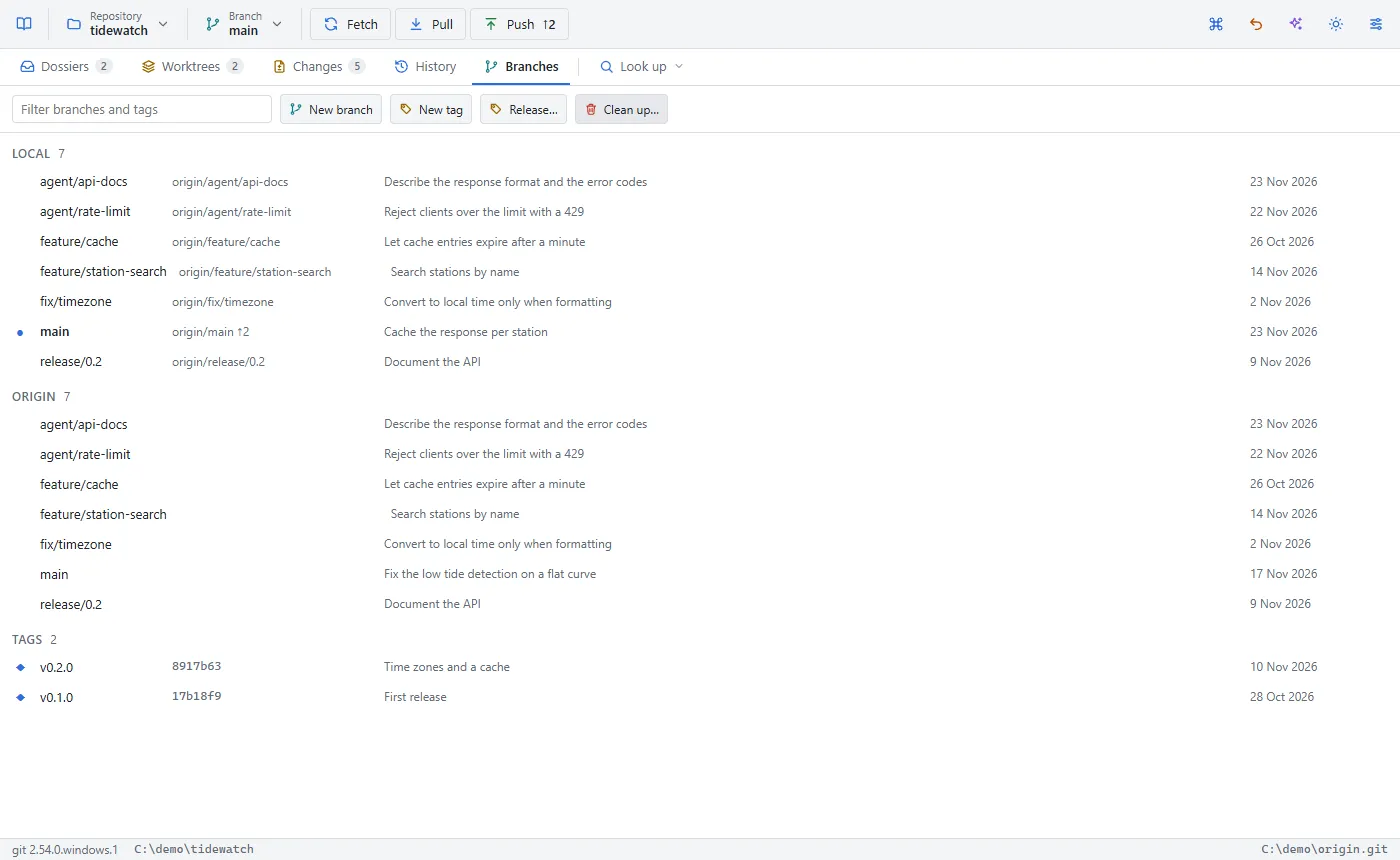
Every row has an actions menu: the button on the right, or a right-click.
Create, switch, rename, delete
Section titled “Create, switch, rename, delete”- New branch, in the toolbar, creates a branch from where you are now. New branch from here… in a row’s menu starts from that branch or tag. Give it a name; the checkbox Switch to the new branch is on by default.
- New tag, in the toolbar, creates a tag on the commit you are on; Create tag here… in a local branch’s menu tags the tip of that branch. Both open the same dialog as in History: name, an optional message and, with a signing key, a tick to sign it.
- Switch in a local branch’s menu, or a click in the top bar list, moves you to it. On a remote branch, Check out creates a local branch that tracks it and switches to it.
- Rename… renames a local branch.
- Delete… removes a local branch (not the one you are on). The dialog says what happens to the remote branch: it stays. If the branch has commits that are neither in your current branch nor on its upstream, a second dialog warns that they can only be recovered through the reflog, and offers Delete anyway. See Lost & found.
Clean up old branches
Section titled “Clean up old branches”After a few months a repository has fifty local branches, most of them finished. Press Clean up… in the toolbar of Branches. The dialog lists the local branches that can go, the oldest first:
- merged: every commit of the branch is already in your current branch;
- already in main (same change): the commits of the branch are not in your current branch by hash, but each one has an equal
twin there. This is what a rebase, a cherry-pick or a rebase-merge on the forge leaves behind: same changes, new hashes. Git
compares the content of the changes (
git cherry, the patch id). The line says the name of your current branch instead ofmain. A branch with a merge commit in it is never marked this way, because that comparison skips merges; - its remote branch is gone: you fetched with pruning, and the branch on the server was deleted, often after a pull request.
Each line shows the last commit. What is safe to delete is ticked: nothing is lost when the branch goes. A branch whose remote is gone but that has commits only on this branch is not ticked, and says how many commits those are. You can still tick it. The commits then stay in the reflog, and Undo brings the branch back.
A branch that was squash-merged on the forge is not recognised as the same change: a squash combines the commits into one, so no commit matches. When a branch has no exact match but the files it changed were also changed in your current branch, the line says No exact match; same files changed in main. A squash-merge looks like this: check the pull request. That is a hint only. The branch is not ticked, and the pull request is the source of truth. The same-change label only appears in this dialog, not yet in the ordinary branch list.
Every deleted branch gets its own entry in Undo. The branch you are on is never offered, and neither is a branch that is checked out in a worktree (git cannot delete those): the dialog says how many it left out. Only local branches are deleted; nothing happens to the remote.
Choose Merge into main… (with your current branch’s name) in a branch’s or tag’s menu. The dialog says that the commits of the other branch are added to yours, and that a conflict stops the merge so you can resolve it in Changes (see Merge conflicts).
Before you press Merge, the dialog tells you what will happen, so you do not find out halfway:
- This merges cleanly: both sides changed things, but not the same lines.
- This merge will conflict in 3 files, with the list of files.
- Nothing to merge: your branch already contains everything from the other one.
- Behind: your branch can simply move forward.
The prediction is made with git merge-tree, which does not touch your working tree or any branch. It only
writes the result as a loose object that git cleans up later. If the prediction fails, the dialog still works,
just without the line.
It has one option: Always create a merge commit (–no-ff). Without it, git just moves your branch forward
(a fast-forward) when it can, unless merge.ff in your git config says
otherwise. With it you always get a merge commit, which keeps a visible trace that a branch existed.
Merge into… and Rebase … onto this… are disabled on the branch you are on, in a repository without commits, and while another operation is running. The rebase dialog warns that your commits get new hashes, and that if they are already on the remote you will need a force push, which the app can’t do yet.
Release a version
Section titled “Release a version”When you are on a branch and want to ship a version, press Release… at the top of Branches. The dialog shows:
- the next version: patch, minor or major, counted from the highest version tag (
v1.2.3or1.2.3) that is in your branch. The minor version is suggested, and you can type any tag name instead, - the release notes: what changed since the previous version, one line per change, the way the release workflow of a project can build them,
- warnings: CI failed or is still running on this commit (when the forge is one the app knows), the commit is not on the remote yet, nothing changed since the last version, or you have uncommitted changes that are not part of the release,
- a tick to sign the tag, when you have a signing key.
Create tag and push makes an annotated (or signed) tag on the commit you are on and pushes it. A push is never forced: if the remote already has that tag, you get push rejected and no tag is left behind. A pushed tag cannot be undone from the app.
What a tag does next is up to the repository, for example a workflow that builds the release. The app watches the CI status of that commit for up to half an hour, in a bar at the top of Branches, and tells you when it passed or failed. It does not wait for a forge it cannot ask.
If some commits in the release carry a Why this commit note from an agent (see History), the
dialog offers Add the questions agents worked on to the release notes. It is off by default, because a question can be
sensitive. Switch it on and the preview shows each item with its question underneath (Why: …, the request only, not the
agent’s approach, at most three per item and 200 characters each). Creating the tag then first pushes the notes
(refs/notes/agents) to the remote, without forcing; the release workflow fetches them and puts the same lines in the
release notes on the forge. The choice is remembered for this repository, and the dialog says so again next time. If the
remote already has notes this repository lacks, the release still goes ahead, without the notes, and the bar tells you.
To keep the questions out later, untick it: the notes already pushed stay on the remote, and the workflow keeps using them
until you delete refs/notes/agents there.
The bar also follows the release page on the forge: once the workflow has created the release for your tag, the bar says so, with the number of files attached, and Open release page opens it in your browser. The app asks again until the number of files stops changing (the workflow uploads them one by one) and then stops asking. The app never creates a release on the forge itself; for a repository without such a workflow there is simply nothing to find, and the app asks less often after CI has finished.
Syncing
Section titled “Syncing”The top bar has three buttons. They work on all remotes (fetch) or on your branch’s upstream (pull, push).
- Fetch downloads new commits from every remote and removes remote branches that were deleted there
(
--prune). It changes none of your own branches or files. - Pull brings your branch up to date with its upstream. The number next to it (
↓3) is how many commits are waiting. It is disabled when you are on a detached HEAD, when there are no commits yet, or when the branch has no upstream. - Push sends your commits (
↑2) to the upstream.
Shortcuts: Ctrl+Shift+F fetch, Ctrl+Shift+L pull, Ctrl+Shift+P push. While one runs you see git’s
progress and a cancel button; afterwards a short note such as “Up to date”, “Updated”, “Merged”, “Rebased”,
“Fetched” or “Pushed” appears for a few seconds.
After a push, the top bar also follows the CI run of your commit on the forge (CI running…, CI passed, CI failed); see Runs, issues and pull requests.
Publishing a new branch
Section titled “Publishing a new branch”A branch with no upstream shows Publish instead of Push. It pushes the branch to origin, or to the
only remote if you have just one, and sets that as the branch’s upstream. With several remotes and none called
origin, the app can’t choose and tells you there is no remote to use.
When pull needs a decision
Section titled “When pull needs a decision”If you have commits the remote doesn’t have, and the remote has commits you don’t have, the branches have
diverged. Git must combine them, and there are two ways. If your git config has no pull.rebase of your own,
the app asks: Your branch and the remote have diverged.
- Merge: a merge commit combines both; your own commits stay as they are.
- Rebase: your own commits go on top of the remote’s; a straight history, but with new hashes.
Remember my choice for this repository (pull.rebase) saves the choice in this repository’s config, so the app does not ask again. Cancel changes nothing. When you are only behind, with nothing of your own, there is no question: the branch is moved forward.
Fetch automatically
Section titled “Fetch automatically”The app fetches in the background so that the ↓ count stays right without you pressing Fetch. In
Settings, under Sync, Fetch automatically is set to Every 10 minutes by default. The choices
are Off, or every 5, 10, 15 or 30 minutes. The first fetch comes about 15 seconds after you open a
repository. Your branches and files do not change. The choice is stored per machine, not per repository.
A background fetch never asks for anything. If the remote wants a password, the fetch fails and the status bar says Automatic fetch failed; a manual Fetch does ask. The status bar also shows when it last succeeded, as “Fetched at 14:05”. It skips a round when something else is running in the repository.
Each remote is fetched on its own. When the server of one remote does not answer, because it is switched off or the network is down, that is not a failure: the other remotes are still fetched, and the status bar says so calmly, as “Fetched at 21:30 · origin offline”. The next round tries again, and the note goes away once the server answers. A manual Fetch while a server is off says which host did not answer.
Stashes
Section titled “Stashes”A stash is a shelf for uncommitted work. Say you are halfway through a change and need to look at another branch. You don’t want to commit half a thought, and you don’t want to lose it either.
Open Parked work (the app’s name for the stash list) from the Look up menu or with Ctrl+4.
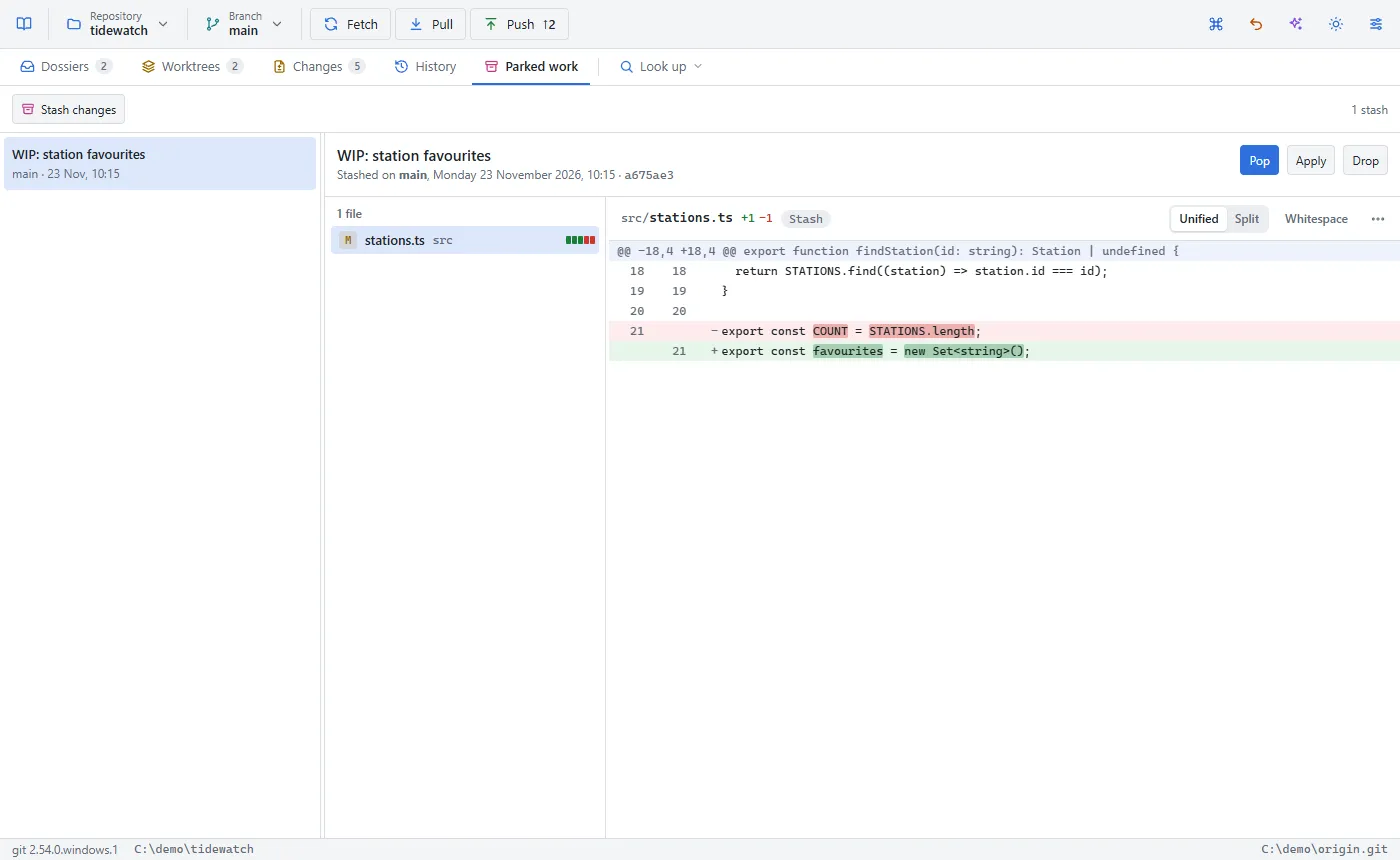
- Click Stash changes (enabled when you have changes). Give it a message; the default is “Work on” and your branch name. Include untracked files is on when you have new files git doesn’t know yet. Click Stash. Your working tree is clean again.
- The stash appears in the list with its branch and time, “with untracked files” if it holds them. Select it to see its files and diffs.
- When you are ready: Pop puts the changes back and removes the stash. Apply puts them back and keeps the stash. Drop removes it after a confirmation.
Apply and pop try to restore what you had staged too. If that is not possible, the changes come back unstaged. If the changes conflict with what is in your working tree now, the app takes you to Changes to resolve them, and the stash is kept until you drop it.
Drop says it can’t be undone, but Ctrl+Shift+Z does bring a dropped stash back.
Stash and retry
Section titled “Stash and retry”Git refuses to switch branches, merge, rebase, pull, cherry-pick or revert when it would overwrite changes you have not committed. The app recognises that case, and next to the error message it offers Stash and retry.
It does three things in a row:
- Stashes all your local changes, including untracked files, under the message “Stashed before” followed by what you tried, for instance “Stashed before switching to feature”.
- Tries the action again.
- Pops the stash, so your changes are back on the new branch.
If the second step stops on conflicts, your changes stay in the stash. A bar under the top bar reminds you, with a Pop button (disabled while the merge or rebase is still going) and Leave it, which keeps the stash in the list. If the action fails anyway, your changes are put back straight away and the original error stays.
Under the hood
Section titled “Under the hood”- Switch:
git switch --no-guess <branch>. Check out a remote branch:git switch --create <name> --track <remote branch>. New branch:git branch <name>, orgit switch --create <name> --no-trackwhen you switch to it. Rename:git branch --move. Delete: checked by the app first, thengit branch --delete --force. - Merge:
git merge --no-edit, with--no-ffif ticked. - Fetch:
git fetch --all --prune. Pull fetches the upstream’s remote, then doesgit merge --ff-only, or merge, or rebase, depending on the situation. Push:git push --porcelain; a new branch gets--set-upstream. - Stash:
git stash push(with--include-untrackedand--message),git stash apply --indexorpop --index, andgit stash drop.
When it goes wrong
Section titled “When it goes wrong”- Push rejected. Someone pushed to the branch first. Pull, resolve anything that comes up, and push again.
- A pull ends in conflicts. The app takes you to Changes. See Merge conflicts.
Ctrl+Shift+Zundoes the pull as long as you haven’t gone further. - Asked for a password, or “authentication failed”. See Logins and privacy.
- Switching fails and there is no Stash and retry button. Then something else is wrong. The message from git is shown under the error banner.
- Stash and retry only helps for git’s English messages. The app recognises the refusal by its text, so a git that speaks another language gives a plain error instead.