
Keyboard shortcuts and the command palette
The idea
Section titled “The idea”Almost everything in the app is one keystroke away. Press Ctrl+K and a search box opens at the top of the window. Type a few letters of what you want (“push”, “new branch”, “dark”), press Enter, and it happens. You never have to remember where a button lives.
On a Mac, Cmd works wherever this page says Ctrl.
The command palette
Section titled “The command palette”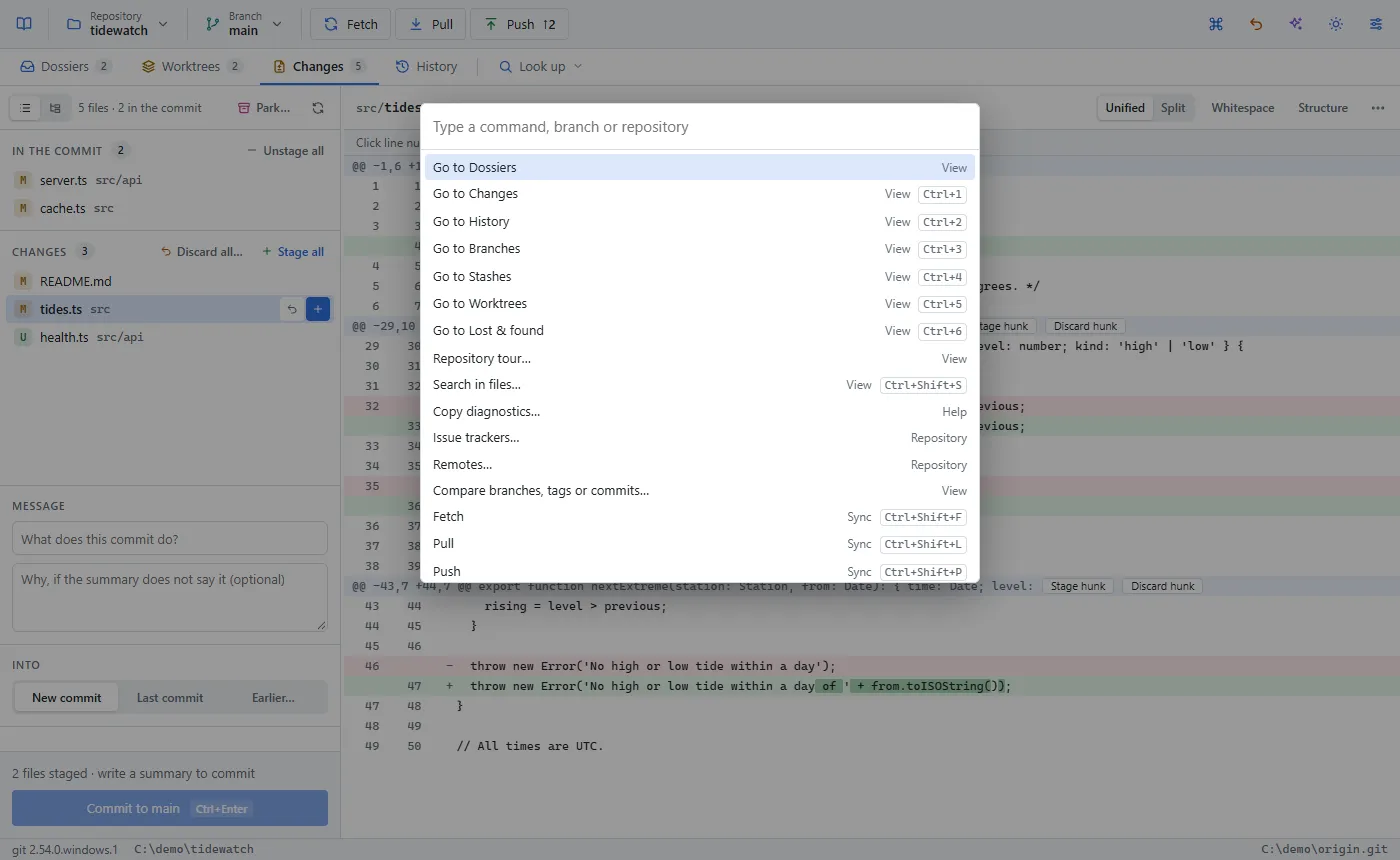
Open it with Ctrl+K, or with the Commands button in the top bar. Ctrl+K works everywhere, even while you are typing in a text field. Type to narrow the list, use Up and Down to move (the list wraps around), press Enter to run the highlighted command, and press Escape or click outside to close it.
The palette holds three kinds of things:
- Commands, such as Fetch, Stage all, Stash changes… or Repository health…. Each one shows its group on the right (for example Sync or View) and its shortcut, if it has one.
- Branches. Every local branch you are not on has a command Switch to name.
- Recent repositories. Each repository you opened before has a command Open name. Repositories whose folder no longer exists are left out, and so is the one that is open now.
How it searches
Section titled “How it searches”Type one or more words. A command matches when every word appears somewhere in its name or its group, in any order and in any case. So sync push finds Push, and switch fix finds Switch to fix-tide-rounding. Commands whose name starts with what you typed come first.
A command that cannot run right now is shown greyed out, and Enter on it does nothing. The tables below say when that is.
What the palette offers depends on what is open
Section titled “What the palette offers depends on what is open”With no repository open, the palette only offers Open repository…, Clone repository…, New repository…, your recent repositories, Go to Settings, Set name and email address, Manage logins and SSH keys, Switch theme and the whitespace toggle for the diff. Everything else appears once a repository is open.
All shortcuts
Section titled “All shortcuts”Shortcuts that need a repository to be open do nothing without one.
Apart from Ctrl+K, the shortcuts are ignored while the cursor is in a text field (a commit message, a search box, the editor). The reason is that in a text box the same keys can mean something else. Click outside the field first, then use the shortcut.
Move around
Section titled “Move around”| Shortcut | What it does | Needs a repository |
|---|---|---|
Ctrl+K |
Open the command palette | No |
Ctrl+1 |
Go to Changes | Yes |
Ctrl+2 |
Go to History | Yes |
Ctrl+3 |
Go to Branches | Yes |
Ctrl+4 |
Go to Parked work (stashes) | Yes |
Ctrl+5 |
Go to Worktrees | Yes |
Ctrl+6 |
Go to Lost & found | Yes |
Ctrl+, |
Go to Settings | No |
Ctrl+J |
Show the Command log | No |
Ctrl+Shift+S |
Search in files | Yes |
Ctrl+PageDown |
Next repository tab | Yes, and at least two repositories open |
Ctrl+PageUp |
Previous repository tab | Yes, and at least two repositories open |
The repository tabs shortcuts are greyed out while a fetch, pull or push is running.
Sync with the remote
Section titled “Sync with the remote”| Shortcut | What it does | Needs |
|---|---|---|
Ctrl+Shift+F |
Fetch | A repository; not while another sync is running |
Ctrl+Shift+L |
Pull | A repository, a branch checked out (not a detached HEAD), an upstream set for it, and no sync running |
Ctrl+Shift+P |
Push (or Publish if the branch has no upstream yet) | A repository, a branch checked out, and no sync running |
If Pull needs a decision, such as how to combine diverged branches, its dialog appears first. The details are on Branches and sync.
Commit
Section titled “Commit”| Shortcut | What it does | Needs |
|---|---|---|
Ctrl+Enter |
Commit | The cursor in the commit message boxes of the Changes view, and the commit button enabled (its tooltip says Ctrl+Enter). This one works inside the text field. |
Staging has no shortcut, but Stage all is in the palette. See Changes and commits.
| Shortcut | What it does | Needs |
|---|---|---|
Ctrl+Shift+Z |
Undo the most recent undoable action | A repository, and a most recent action that can still be undone |
This is the same as the first item in the Undo menu in the top bar. If that item is greyed out in the menu, the shortcut does nothing either. The palette shows it as Undo: name of the action.
Claude
Section titled “Claude”| Shortcut | What it does | Needs |
|---|---|---|
Ctrl+Shift+A |
Open or close the Claude panel | A repository |
See Claude in the app.
Inside specific screens
Section titled “Inside specific screens”| Where | Shortcut | What it does |
|---|---|---|
| History | Ctrl+click a commit |
Choose a second commit, so you can compare the two |
| New agent worktree dialog, task box | Ctrl+Enter |
Confirm (a plain Enter adds a new line) |
| Merge editor, result pane | Ctrl+Z, Ctrl+F |
Undo an edit in the editor, search the editor |
| Terminal panel | Ctrl+C |
Copy, if text is selected; otherwise it goes to the program in the terminal |
| Terminal panel | Ctrl+V |
Paste |
Commands without a shortcut
Section titled “Commands without a shortcut”These are only in the palette (or in a menu): Compare branches, tags or commits…, Stage all, Stash changes…, New branch…, New agent worktree…, Repository health…, Close repository, Open repository…, Clone repository…, New repository…, Set name and email address, Manage logins and SSH keys, Switch theme, and Ignore whitespace in the diff (which turns into Show whitespace in the diff once it is on).
The top bar
Section titled “The top bar”From left to right:
- Book icon (title User guide: what every feature does): opens this guide in your browser.
- The repository menu, and, once a repository is open, the branch menu and the sync buttons.
- Commands (
Ctrl+K): opens the command palette. - Undo, with a repository open: a menu of the last actions you can take back, newest first, up to twelve. An action that can no longer be undone is greyed out with the reason. See Lost & found for the other safety nets.
- Claude (Claude: help when you get stuck): opens or closes the Claude panel. It is highlighted while the panel is open.
- Theme: each click switches to the next theme.
- Settings: opens the Settings page.
Light, dark or system
Section titled “Light, dark or system”The theme button cycles through three choices, in this order: System (follows Windows), Light, Dark. Its tooltip names the current one: Theme: System. Click to switch. The same switch is in the palette as Switch theme. The choice is remembered on this computer.
The status bar
Section titled “The status bar”The thin bar at the bottom of the window shows, from left to right:
- The git version the app found (
gitfollowed by the version number), or git not found in red. - With a repository open: its folder, and the URL of its remote.
- With a repository open: the result of the last fetch. It says Fetched at 14:32 after a fetch or pull, by hand or automatic, and Automatic fetch failed if the background fetch could not finish. A remote whose server did not answer is added as “origin offline”; that is not a failure. Hover over it for the reason. How often the app fetches by itself is set under Settings, in General, Sync.
- Version x.y.z is available, when the app found a newer release. Click it to read the release notes and update. See Logins, keys and privacy for what this check does.
When it goes wrong
Section titled “When it goes wrong”- A shortcut does nothing. Check that no text field has the cursor, that a repository is open, and that no fetch, pull or push is still running. For Pull and Push, check that you are on a branch and not on a detached
HEAD. Ctrl+Shift+Zdoes nothing. The newest action in the Undo menu is greyed out, or the menu is empty.- A command is missing from the palette. It is hidden when it makes no sense: for example Next repository needs two open repositories, and Switch to name is not shown for the branch you are on.