
Stage and commit exactly what you mean
The problem
Section titled “The problem”You spent an hour on a feature and fixed an unrelated typo on the way. Your working tree now holds two changes, sometimes in the same file. If you commit everything, the history says “add feature” and quietly includes the typo fix, a debug line, and half of something else.
Git has a middle step for this, the index (also called the staging area). You first choose what goes
into the next commit, and only then commit. The Changes view (Ctrl+1) is built around that step.
The idea
Section titled “The idea”Every changed file can be in two places at once:
- Unstaged: the change is on disk but not yet chosen for the next commit.
- Staged: the change is chosen. A commit contains exactly the staged changes.
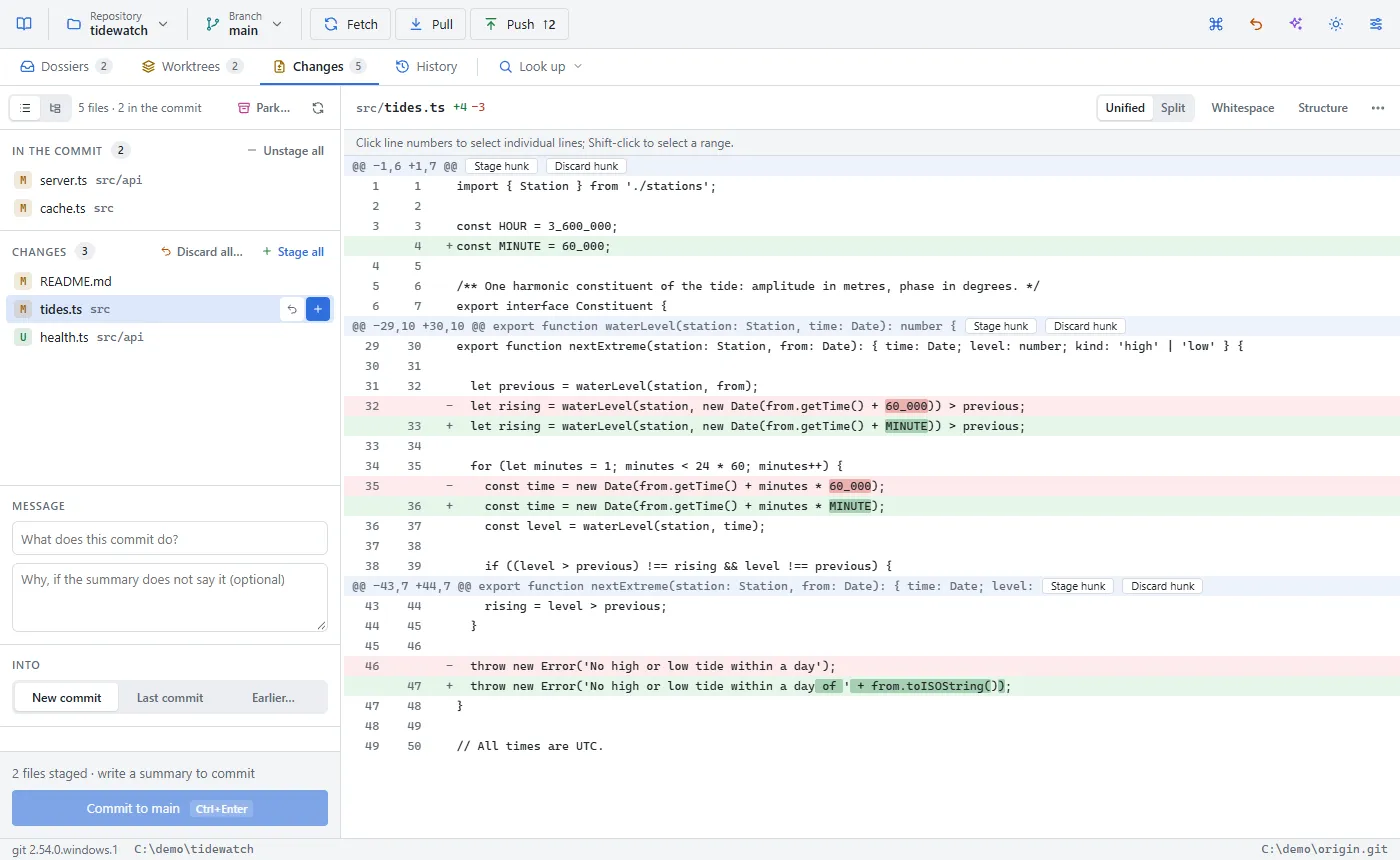
A file can be in both lists when you staged only part of it. The part you staged shows under Staged, the rest under Unstaged.
How to use it
Section titled “How to use it”The file lists
Section titled “The file lists”The toolbar above the lists switches between List (one flat list, with the folder in grey after the file name) and Tree (folders you can fold). The app remembers your choice. Each file has a letter badge for what happened to it (hover for the word), and two small buttons at the end of the row: + or − to stage or unstage it, and ↺ (Discard changes) on unstaged files.
Above the lists you also find Stage all, Unstage all and Discard all. In the tree, a right-click on a folder stages, unstages or discards everything in it.
Stage a whole file, a hunk, or single lines
Section titled “Stage a whole file, a hunk, or single lines”A hunk is one block of changes in the diff, with a few lines of context around it. You have three sizes:
- A file. Click + on its row, or right-click it and choose Stage.
- A hunk. Select the file, then use Stage hunk at the top of the block in the diff. On a staged file the button says Unstage hunk. Right-clicking inside a hunk offers the same.
- Single lines. Click a line number in the diff to select that line, click more numbers to add lines, or Shift-click to select the whole range from the last line you clicked. A bar above the diff counts them (“3 lines selected”) and offers Stage, Discard and Clear selection. On a staged file it offers Unstage instead.
Line staging is not available in a few cases, and the diff then shows no clickable line numbers: while Ignore whitespace is on (that diff doesn’t fit as a patch), for binary files, for diffs too large to show, for Git LFS pointers, for submodules, for conflicts, and for a staged file that was renamed.
Discard changes
Section titled “Discard changes”Discarding puts a file back to what is in the index. For a new file that git doesn’t track yet, it deletes the file. The app asks first (Discard changes?).
Before it changes anything, the app moves the current version of the file to the Recycle Bin. For
Discard hunk and Discard on selected lines, it puts a copy of the current file in the bin and keeps
the file itself. It also saves a snapshot of your working tree, and the action shows up
in the Undo list, so Ctrl+Shift+Z brings the files back. A submodule can’t be discarded.
Read the diff
Section titled “Read the diff”The buttons above the diff change how it looks, and the app remembers them:
- Unified shows removed and added lines one under the other. Split shows the old version on the left and the new one on the right. In split view you can drag the divider; double-click it to split evenly.
- Inside a changed line, the words that actually changed are highlighted, so you see the one word that moved and not only that the whole line is different. Lines that are too long (over 500 characters) or that have too little in common are not marked per word.
- Ignore whitespace hides differences that are only spaces or indentation. It applies to every diff in the app (Changes, History and Parked work), and it turns line staging off while it is on.
- Structure adds a summary above the diff of what git itself recognises, without reading the code: files that only moved (same content, new path), files where only whitespace changed, and blocks of lines that moved within or between files. Moved blocks are shown muted in the diff, with a tooltip. Nothing is hidden: the line diff stays complete and is the default, and Structure is a switch you turn on. It is also in the History and Compare diffs. Git only recognises blocks of at least 20 characters that are identical, so small moves stay ordinary changes, and files where indentation matters (Python, YAML, Makefile, Markdown) are never called “only reformatting”.
- Hotspot: high (or medium) in the header of the diff means that the selected file changes often, by many people or in many fixes in the history. N hotspots in this change counts them for the whole change. It is a hint to look twice, from fixed rules; see Get to know a repository.
- For images (png, jpg, jpeg, gif, webp, avif, bmp, ico, svg) the diff shows the Before and the After side by side, with their sizes, instead of “Binary file”.
For a file that was in the last commit, History and Blame above the diff jump to the history of that file.
Commit
Section titled “Commit”The panel under the lists has a Summary and a Description. The summary is required. The number
beside it is its length; it turns to a warning when the line gets long. The Commit to <branch> button
is enabled when there is a summary and at least one staged file. Ctrl+Enter in either box commits too.
Tick Amend last commit to fold your staged changes (and a new message) into the previous commit instead of making a new one. The message of the last commit is filled in for you if the boxes are empty, and the button changes to Amend last commit. Amend is not available on a branch without commits, or in the middle of a merge, rebase, cherry-pick, revert or bisect.
Hooks run as they do on the command line. If git needs your name and email, the error has a fix for it next to it.
Fix up an earlier commit
Section titled “Fix up an earlier commit”You see a typo in a commit from three steps back. The tidy way is a fixup! commit and an autosquash
rebase, and most people leave the typo. Stage the fix and press Fix up… next to Amend last commit.
The dialog lists your last commits, newest first, up to the first merge commit. The commit that last changed the lines you touched (found with blame) is already chosen, with a note such as 2 lines changed here. Pick another one if you know better, and press Fix up. The app then:
- saves a snapshot of your work,
- commits the staged changes as
fixup! <that commit>, - rebuilds the commits after it, folding the fix into the commit you picked.
The commit keeps its message, and the commits after it get new hashes. Changes that were not staged stay in your working tree. Undo brings the branch back and stages the fix again.
- If a later commit changes the same lines, the rebase stops and the bar at the top asks you to resolve
the conflict. If you abort it, the
fixup!commit stays on your branch, so your fix is not lost. - A commit that is already on a remote is rewritten too, and you must force push afterwards. The dialog asks for a tick before it does that.
Absorb the staged changes
Section titled “Absorb the staged changes”When one fix belongs in one commit, Fix up… is enough. When you stage several fixes at once, press Absorb… next to it. The app sends each staged change to the commit that last changed those lines (found with blame), among your last commits up to the first merge commit.
The dialog shows, per commit, which changes go into it, and below that what stays where it is, with the reason. A change stays when it touches lines of more than one commit, when the lines come from an older commit or a merge, or when the file is new, deleted, renamed or binary. A change that only adds lines goes to a commit when the lines above and below it belong to that same commit.
Press Absorb and the app saves a snapshot, builds one fixup! commit per
target and folds them in with an autosquash rebase, like Fix up… does. The commit messages stay as
they are. What did not go in stays in your working tree. Undo brings the branch back and stages the
absorbed changes again. A commit that is already on a remote is rewritten too, so the dialog asks for a
tick first.
Ignore a file
Section titled “Ignore a file”A build folder, a log file, a local settings file: things you never want in Changes. Right-click an unstaged file and choose Ignore…. The dialog offers four scopes, each with the line it will add:
- Only this file (
/build/app.log), - Every file with this extension, anywhere (
*.log), - Every file with this name, anywhere (
app.log), - The whole folder this file is in (
/build/).
The line goes to the bottom of .gitignore in the root of the repository, and the file disappears from Changes.
Undo puts .gitignore back as it was. If the same line is already there, nothing changes.
Git keeps tracking a file it already tracks, even when a rule now matches it. The app tells you which tracked files
that concerns and offers Stop tracking: that runs git rm --cached, so the files stay in your working tree and the
removal is staged. Commit it to finish. Unstage brings the tracking back.
Wondering why a file does not show up in Changes? Open the command palette (Ctrl+K) and choose Why is a file
ignored…. Enter the path and the app names the rule, the file it is in and its line number: *.log on line 2 of
.gitignore, or a rule from .git/info/exclude or your global ignore file. If git tracks the file, it says that too.
When a hook stops the commit
Section titled “When a hook stops the commit”A repository can have hooks: scripts that run before a commit, such as a linter or a check on the message (pre-commit,
commit-msg). When one fails, the commit does not happen, and the app now says so: A hook stopped the commit, with
the output of the hook and the names of the hooks that can stop a commit in this repository. They are found in
core.hooksPath if you set one (as husky and lefthook do), and otherwise in .git/hooks.
Fix what the hook reports and commit again. If you really want the commit anyway, press Commit anyway (skip hooks)….
After a confirmation the app commits with git commit --no-verify: the pre-commit and commit-msg hooks do not run
for that commit, so the checks they do are not done. Your team may run them again on the server.
Stash from the Changes view
Section titled “Stash from the Changes view”Stash in the toolbar sets all your local changes aside so you can switch branches with a clean tree. It
asks for a Message (it suggests “Work on <branch>”) and has Include untracked files, which is
ticked when you have such files. It is disabled when there are no changes or when a file is in conflict. The
stash itself is managed in the Parked work view (Ctrl+4).
Let Claude help
Section titled “Let Claude help”If you saved an Anthropic API key under Settings, Claude, two buttons appear next to Amend last commit. Both read the staged diff and send it to Anthropic, so they only work once something is staged.
- Suggest with Claude proposes a summary and description in the style of your repository’s earlier commits. It replaces what is in the boxes. It uses the Haiku model.
- Claude review checks the staged changes for bugs, leftover debug code, secrets and files that don’t belong in the commit. Each finding has a View button that selects that file.
Without a key the buttons are not shown. The Claude in the app page has the rest.
Three more things belong here, and all are explained in See what is sent to Claude, and keep secrets out:
- Show what is sent, next to the suggestion button, shows the exact text that Suggest with Claude would send, after recognised secrets are replaced. You can strike a file, and make this preview mandatory for the repository.
- If you chose a local model in Settings, the button reads Suggest with local model and the diff stays on your computer (or goes to the server you named; the app warns when that is another machine).
- When a staged line looks like a secret, a box above the commit panel says A possible secret is staged, with Unstage file, Add to .gitignore, Not a secret and Search history. Nothing is blocked.
Under the hood
Section titled “Under the hood”| What you do | Command |
|---|---|
| Stage files | git add --all --pathspec-from-file=- --pathspec-file-nul |
| Unstage files | git reset --quiet --pathspec-from-file=- --pathspec-file-nul |
| Discard a file | git restore --worktree (same pathspec options), after moving it to the Recycle Bin |
| Stage lines or a hunk | builds a patch from the diff, then git apply --whitespace=nowarn --cached - |
| Unstage lines or a hunk | the same patch with git apply --cached --reverse - |
| Discard lines or a hunk | git apply --reverse - |
| Commit | git commit --quiet --file=-, with the message on stdin |
| Amend | git commit --quiet --file=- --amend |
For a new file you stage by line, the app first runs git add --intent-to-add so the index has an empty
file to apply the patch to. When your selection covers every change in the file, it stages the whole
file instead.
When it goes wrong
Section titled “When it goes wrong”- The commit button is grey. There is no summary, nothing is staged, or an operation such as a rebase is running. During a rebase, cherry-pick or revert you continue from the bar at the top. During a merge the button reads Commit merge and is enabled when every conflict is resolved.
- You committed the wrong thing.
Ctrl+Shift+Zremoves the last commit and stages its changes again. - You discarded too much. Undo brings it back, and the Recycle Bin and Lost & found hold copies.
- A stash is refused. Git can’t stash a conflict. Resolve it first, see Merge conflicts.