
Get back what you lost (Lost & found)
The problem
Section titled “The problem”You ran a reset, deleted a branch, or finished a rebase and now a commit you needed has disappeared. Or you discarded changes you hadn’t committed yet. Git rarely deletes anything straight away, but it also doesn’t tell you where things went.
Two safety nets
Section titled “Two safety nets”Open Lost & found from the Look up menu. It has two tabs: Commits and Saved work.
1. Commits that are on no branch
Section titled “1. Commits that are on no branch”Git keeps a private diary of where HEAD and your branches pointed, called the reflog. Every
checkout, commit, reset and rebase adds a line. Lost & found shows the last 30 days of that diary
as a readable list, grouped per day.
A commit that no branch or tag leads to anymore is marked Lost, and the tab shows how many there are. Pick it and the page says: “This commit is on no branch or tag. Git cleans up such commits after a while; restore it to keep it.” The buttons are in the bar at the bottom. Choose Restore as branch…, then give the branch a name. The commit is now safe, and you can look at it, merge it or cherry-pick it.
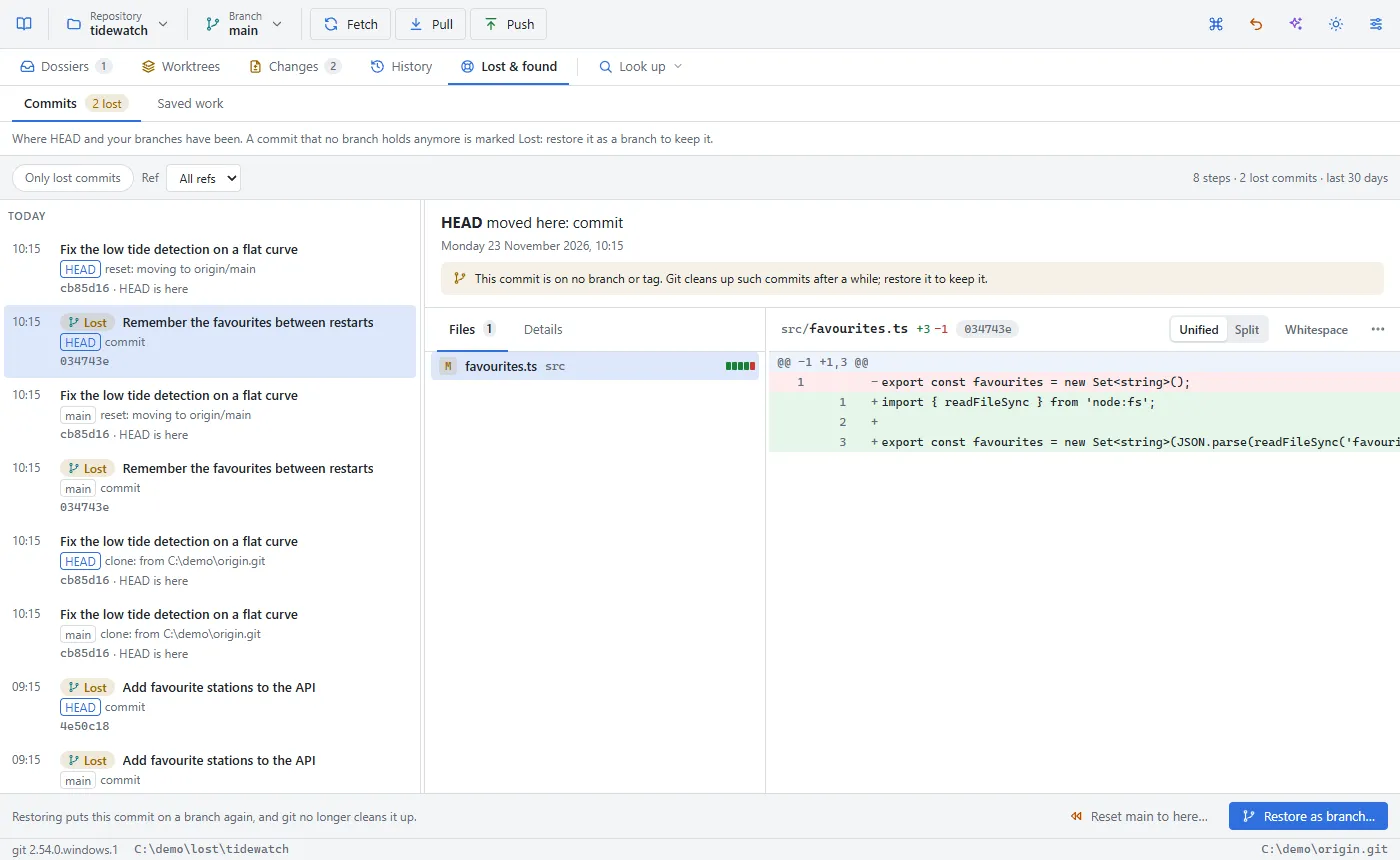
Too many lines? Only lost commits hides everything that is still on a branch.
The list also has the HEAD of your other worktrees, named like worktree agent-1. That is where you find commits made in another worktree on a detached HEAD, such as an agent that was left on a loose commit, and what that worktree did before. Choose it in the filter next to the list to see only that worktree.
2. Snapshots of uncommitted work
Section titled “2. Snapshots of uncommitted work”The reflog only knows about commits. Changes you hadn’t committed never reach it, so a hard reset or a discard would normally lose them for good. To close that gap the app takes a snapshot of your uncommitted work:
- before a hard reset, a discard, a branch switch, an interactive rebase or removing a worktree,
- every ten minutes while a repository is open, for the repository and for its other worktrees too (also an agent’s worktree that is not open as a tab),
- whenever you press Take snapshot.
Snapshots are kept for seven days, under the Saved work tab. Each one lists the files it holds
and when it was taken, and you can put its files back with Restore these files. Even a reset --hard or clean that you typed in
a terminal, outside the app, can be undone from here, as long as the repository was open when the
snapshot was taken.
You can change both numbers under Settings > General > Snapshots: the interval (1 to 120 minutes, default 10) and how long snapshots are kept (1 to 90 days, default 7). A change applies at once. Worktrees whose folder is gone are skipped.
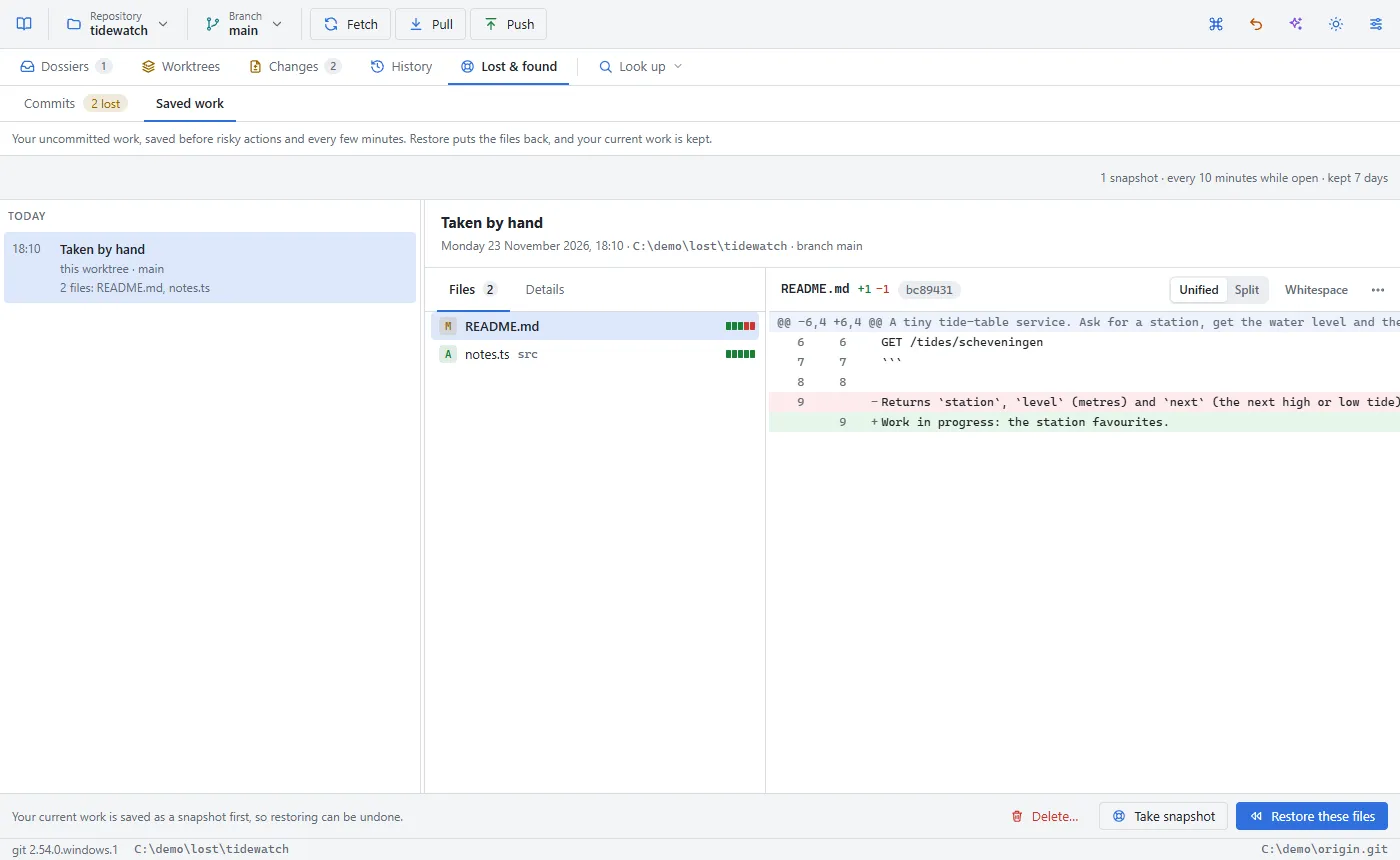
To get rid of one snapshot, select it and press Delete…. The app asks first: a deleted snapshot can’t be restored, and Undo doesn’t bring it back. Your working folder and your other snapshots are not touched. Git removes the files themselves a little later, when it next cleans up.
How it differs from Undo
Section titled “How it differs from Undo”Ctrl+Shift+Z undoes the last action you took in the app: a commit, a merge, a dropped stash.
Lost & found is for everything else: things you did in a terminal, things you did last week, and
things you only noticed were missing today.
Under the hood
Section titled “Under the hood”The commit list is git reflog, with a check per commit whether any branch or tag still reaches
it. Restore as branch… is git branch <name> <hash>. A snapshot is a commit that git creates
for the working tree without moving any branch, kept under its own reference, so your history stays
clean.
When it goes wrong
Section titled “When it goes wrong”- The commit isn’t in the list. The reflog only covers this machine, and only the last 30 days. A clone made yesterday has no memory of what happened in another clone.
- A snapshot is missing. Snapshots are only taken for repositories that are open in the app, and only for the worktree open in that tab.