
Read your history
The problem
Section titled “The problem”You want to know what happened in a project: who changed this file, when did that setting appear, did the
build pass on this commit? git log answers some of that, but it scrolls past in one long text column and
shows you nothing about how branches relate.
The idea
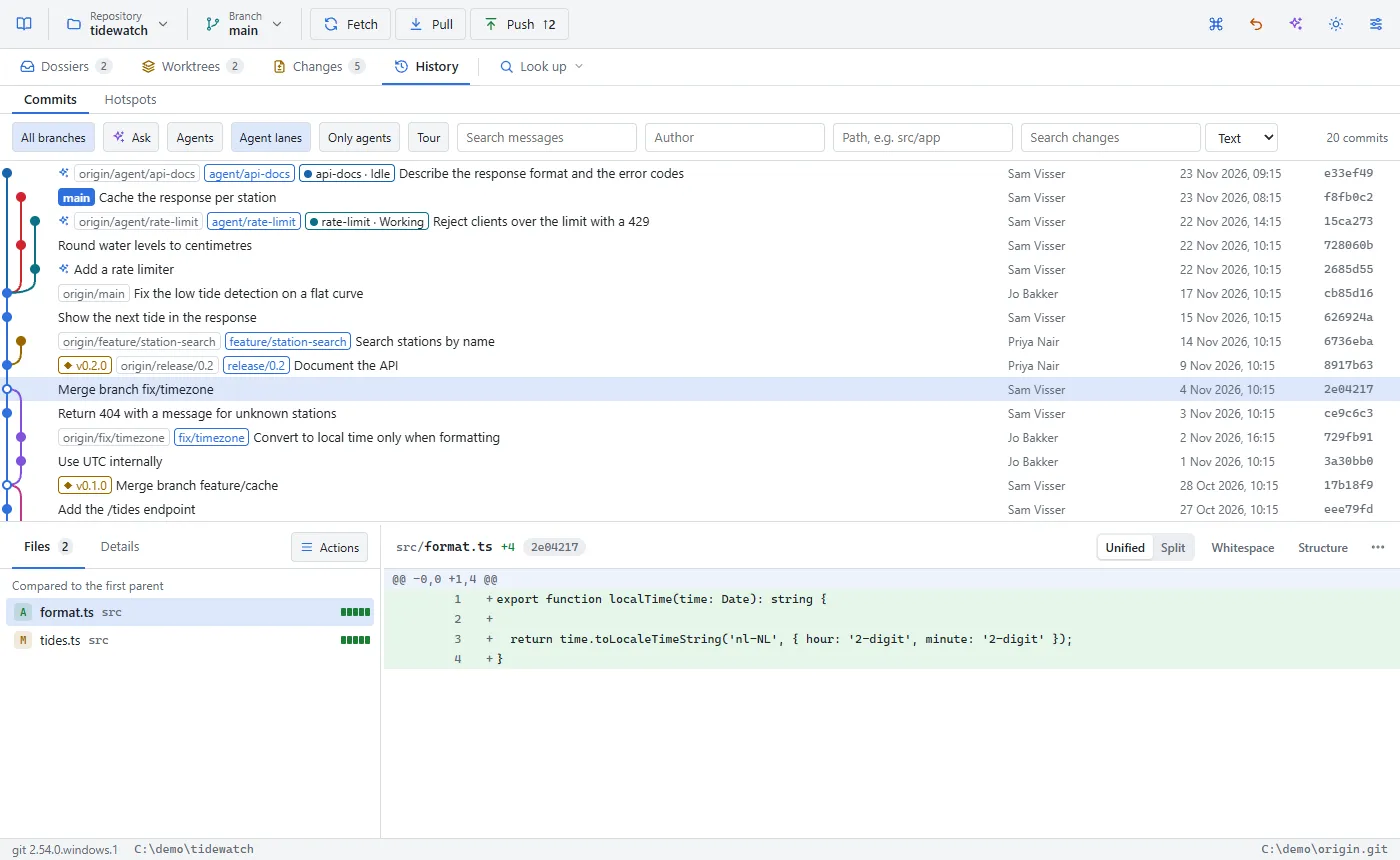
Section titled “The idea”Open History with Ctrl+2. The top half is the list of commits, newest first. The bottom half shows the
commit you picked: its message, the files it changed, and the diff of the selected file.
The graph
Section titled “The graph”Each row is one commit: a dot on a line. The lines are the lanes. A lane is one line of history that is running at that moment. When a branch splits off, a new lane appears; when branches come together in a merge, two lanes join. Lanes are reused once they end, so the graph is only as wide as the number of branches that run at the same time. Each lane has its own colour.
- A filled dot is a normal commit.
- An open dot is a merge commit (a commit with more than one parent).
Next to the message you see labels for the branches, tags and HEAD that point at that commit:
- A branch in the accent colour is a local branch. The one you are on is filled in.
- A branch with a remote in its name, like
origin/main, is a remote branch. Hover a label to see what kind it is. - A label with a
◆is a tag. HEADon its own means a detached HEAD.
A row can also carry a small CI mark, a shield, a bisect mark, or a small sparkles icon for a commit that was written in an agent worktree. They are explained below.
To keep the list fast, the app loads commits in pages and fetches more as you scroll to the end.
At the top of the view, the tabs Commits and Hotspots switch between the list and a table of the files that changed most often, by most people, or in most fixes. That table, the buttons Agents and Tour in the toolbar, and the sparkles icon are explained in Get to know a repository, and who wrote what.
Agent lanes in the graph
Section titled “Agent lanes in the graph”When you have agent worktrees, the graph can show which branch is whose. The buttons Agent lanes (on by default, and remembered) and Only agents appear in the toolbar when there is at least one agent worktree.
- With Agent lanes on, the tip of each agent branch gets a label with the name of the agent and its state (Working, Waiting, In the queue or Landed, and on the parent when it is a chain). The line of that branch has a colour of its own, from the tip down to where the branch split off. Click the label to open the dossier of that branch, to read only.
- Only agents shows only the commits on agent branches, and hides the graph itself.
The colouring follows the first parents over as many commits as the branch is ahead of its base. A branch that merged other branches in may be coloured a little too far. You cannot yet filter on a single chain of agents, and there is no line between a parent and a child branch.
The details of a commit
Section titled “The details of a commit”Pick a commit and the bottom half fills in. On the left are two tabs, in a bar that lines up with the bar above the diff:
-
Files (open by default, with the number of files): the list of files, each with a letter for what happened to it. For a merge, the list is “compared to the first parent”.
-
Details: the subject and the rest of the message, Author, Date, the full Commit hash, and its Parent or Parents (click a parent to jump to it). The Committer is only shown when it differs from the author. When an agent recorded why it made the commit, when the commit is signed, and when it was written in an agent worktree, that is here too. The tab you choose stays when you pick another commit.
If the same change exists in another commit, Same change in another commit lists it, with the branches it is on (or on no branch). This is what you see after a rebase, a cherry-pick or a backport: the content is the same, the hash is not. Git compares the changes (the patch id), and the app only looks at commits with the same author and author date. A commit that was rewritten with another author date is not found.
Next to the details is the diff of the file you select. The buttons History and Blame above the diff show all commits that touched this file, and who last changed each line (see Blame and line history).
Actions, at the right of the tabs, opens the same menu as a right-click on a commit; Copy hash is in it.
Filters and search
Section titled “Filters and search”The bar above the list narrows the commits. The filters combine: a commit has to match all of them.
- All branches: on, you see every branch, remote branch and tag. Off, you only see the commits that lead to where you are now.
- The Search messages field: commits whose message contains the text.
- The Author field: matches the author’s name or email address.
- The Path, e.g. src/app field: only commits that touched this file or folder.
All three are plain text, not case-sensitive. The app waits a moment after you stop typing before it searches.
When any filter is active, the bar says “Filtered” and the graph is hidden. A filtered list has gaps, so lines between the commits would be misleading.
Search changes
Section titled “Search changes”The first three filters look at the commit’s label: message, author and path. Search changes looks
inside the changes: it finds commits where a piece of code was added or removed. That is the way to answer
“when did retryLimit appear, and when did it go?”
Next to the field is a select with two modes:
- Text finds commits where the number of times your text occurs changes: it was added or removed. A commit
that only moves the text around does not count. This is
git log -S. - Regex takes a regular expression (POSIX extended) and finds every commit that added or removed a line
matching it. This is
git log -G.
Both ignore upper and lower case. If git can’t read your regular expression, the app shows git’s explanation.
Searching inside changes has to read the diff of many commits, so it can take a while on a big repository. While it runs you see “Searching changes…”, a running clock, how many commits have been checked (for example “1,500 of 20,000 commits checked”), and a Cancel button. If you cancel, the commits found so far stay in the list. When you scroll down for more results, the search carries on where it stopped instead of starting over. Searching the history of a single file (a Path that is a file) is the exception: git can’t count there, so you only see the clock. Files that match show a match label in the file list of the commit.
The history of one file
Section titled “The history of one file”Right-click a file in the details and choose History, or use the History button above its diff. The app
opens this view with that path as the Path filter and clears the other text filters. When the file exists
at HEAD, the list follows it across renames (git log --follow).
CI status next to commits
Section titled “CI status next to commits”If your remote lives on a forge, commits can show a small mark: a check (passed), a cross (failed) or a pulsing dot (running). Hover it to read “CI passed”, “CI failed” or “CI running”. Click it to open that commit’s CI page on the forge in your browser: the checks on GitHub, the pipelines on GitLab, the commit on Forgejo or Gitea. A commit without a mark has no CI result, or the app could not find out.
The app asks the forge’s API. It supports GitHub (including GitHub Enterprise Server), GitLab, and Forgejo or Gitea, such as Codeberg. It works out which one you use from the remote URL:
github.com,gitlab.comandcodeberg.orgare recognised by name.- For any other host, the app asks the server once which API it speaks (GitLab, Forgejo/Gitea or GitHub Enterprise) and remembers the answer.
- Bitbucket and Azure DevOps are recognised, but the app can’t read CI from them yet.
Which remote counts: the remote of your branch’s upstream, or origin, or the only remote there is. If a
repository has several remotes and none of those apply, there is no CI mark.
Some things to know:
- Commits that are not on the remote yet get no mark.
- For an
httpsremote the app uses the token git already has for that address. It never asks you for one for this. If the forge needs a login you don’t have, you see no marks and no error. - Results are cached: a final result for ten minutes, a running one for fifteen seconds. A failure to reach the forge never shows up as an error.
Signed commits
Section titled “Signed commits”A small shield means the commit is signed. It is green when git could verify the signature, grey when it is signed but git can’t verify it, and red when the signature is bad or the key is revoked. The details of a commit explain which one it is, and why. See Signed commits.
Why this commit
Section titled “Why this commit”When a commit was written by an AI agent that reported its intent, the details show a Why this commit
block: the question the agent was asked to solve and how it went about it. It is recorded by the agent through
the app’s MCP server (the record_intent tool) and stored as a git note on your machine. Notes are
not pushed unless you choose to: Release… can push them and put the questions in the
release notes, and only then. Commits made by hand have no such block.
Compare two commits
Section titled “Compare two commits”Ctrl+click a second commit to select two, then right-click and choose Compare (it names both hashes). With
one commit selected, Compare with and your branch name in the same menu compares it with your current branch. See
Compare.
Ask about this repository
Section titled “Ask about this repository”The Ask button in the toolbar opens a box where you can ask when or why something changed, for example When did the retry
logic change, and why? Claude looks through the history with read-only git commands (log -S, blame, show, notes) and
answers with the commits it used. Click a commit under Based on to see it in History. Cancel stops a question that is
still running.
- It only looks. Every command goes through the same check as the Claude panel, and anything that would change the repository is refused.
- No source, no answer. The app checks every commit Claude names against the repository and takes the subject, author and date from git itself. If no real commit is left, you get no answer, only the message that Claude found nothing to base one on. If the history does not say why, the answer should say so.
- What leaves your computer. The commit messages, notes and changes Claude reads are sent to Anthropic, after the app removed passwords and tokens. You need an API key under Settings, as for the other Claude functions.
This is one question and one answer, not a conversation.
Links to issues
Section titled “Links to issues”A reference like #123 in the subject or the description of a commit is a link to that issue on the forge of the
repository (GitHub, GitLab, Forgejo or Gitea, Codeberg). Click it and the issue opens in your browser. Keys of another
tracker, like PROJ-45 for Jira or Linear, need a one-time setting: run Issue trackers… from the command palette
(Ctrl+K) and add the prefix and the address of an issue, with {id} where the key goes, for example
https://jira.example.com/browse/{id}. The setting is per repository and stays in the app.
Hover a #123 link and the tooltip shows the title and whether the issue is open or closed. The app asks the forge once
per issue; a private repository needs a login for it, like the other forge features. A PROJ-45 key has no title, because
trackers like Jira have no interface the app can read.
To start an agent on an issue, run New agent from issue… from the command palette (Ctrl+K). Type the number (12,
#12) or paste the address of the issue. The New agent dialog opens with the name issue-12 and the title, description
and address of the issue as the task. Read it before you start: the text comes from the issue, so anyone who can edit the
issue can influence what the agent is asked to do.
Browse the files of a commit
Section titled “Browse the files of a commit”The Browse files tab, behind Search, shows the folders and files as they were in the commit HEAD points to, without checking anything out.
The page works like File Explorer:
- Folder tree on the left: it shows only the folders of the commit. Open a folder with its arrow, click it to go there. The folders above the one you are in are open. Drag the line next to it to make the tree wider or narrower.
- Back, Forward and Up above the list (
Alt+Left,Alt+RightandBackspace), and the path in the address bar, where every part is a button. - List with the columns Name, Type and Size. Click a column header to sort, click it again to reverse the order;
folders always stay on top. Click a line to select it, double-click it (or press
Enter) to open it. The arrow keys,HomeandEndmove the selection. - Status bar at the bottom: the number of items, and the size of the selected file.
Open a file to read it with line numbers. Comments, strings, numbers and keywords get a colour for the common languages (Go, TypeScript and JavaScript, Python, Rust, Java, C and C++, CSS, HTML, shell, YAML, SQL, PHP, Ruby); other files stay plain. From a file you can go to its History or to Blame as of this commit. A binary file or a file over 2 MB is not shown; the page says so.
Open in editor saves the file as it was in that commit to a temporary folder, read-only, and opens it in your editor.
A change you make there goes nowhere. Choose the editor under Settings → General → Editor: a command such as code
or "C:\Program Files\Notepad++\notepad++.exe", to which the app adds the file. Leave it empty to use the program
Windows knows for that file type. There is no shell, so a & in the command is just text.
Search in files (Ctrl+Shift+S) looks through the files of the current working folder, or of all open and recent
repositories, and opens a result in Blame on that line.
What else you can do with a commit
Section titled “What else you can do with a commit”Right-click a commit for branch, tag, cherry-pick, Backport to…, revert, reset, interactive rebase and bisect actions. See Actions on a commit.
Ask, Story and the tour
Section titled “Ask, Story and the tour”Besides Ask, Claude can tell the Story of a file from Browse, and Tour gives a map of the folders without Claude. See Get to know a repository.
Under the hood
Section titled “Under the hood”The list is git log --date-order --decorate=full, with --branches --remotes --tags when All branches
is on. The filters are --grep, --author and -- <path>, all with --fixed-strings and
--regexp-ignore-case. Search changes adds -S<text> or -G<regex>. The details are git show --no-patch. CI status is read from the forge’s HTTP API, not from git.
When it goes wrong
Section titled “When it goes wrong”- No commits found, but you know it exists. Check that All branches is on, and clear the filters one by one. A path filter also hides everything outside that path.
- Search changes is slow. Narrow it with a Path or Author first, or press Cancel.
- The regex gives an error. Git uses POSIX extended expressions. Escape characters such as
(or.with a backslash if you mean them literally, or switch to Text. - No CI marks. The commit may not be pushed, the remote may not be a supported forge, or the forge may need a login that git does not have yet. See Logins and privacy.