
Act on a commit (cherry-pick, revert, reset)
The problem
Section titled “The problem”You want to do something with a commit that is already in your history: bring one fix to another branch, take back a change that turned out wrong, or throw away recent work. Each of these is a different git command with a different risk, and the names don’t say which is which.
One menu
Section titled “One menu”Right-click any commit in History. The menu has what you can do with it:
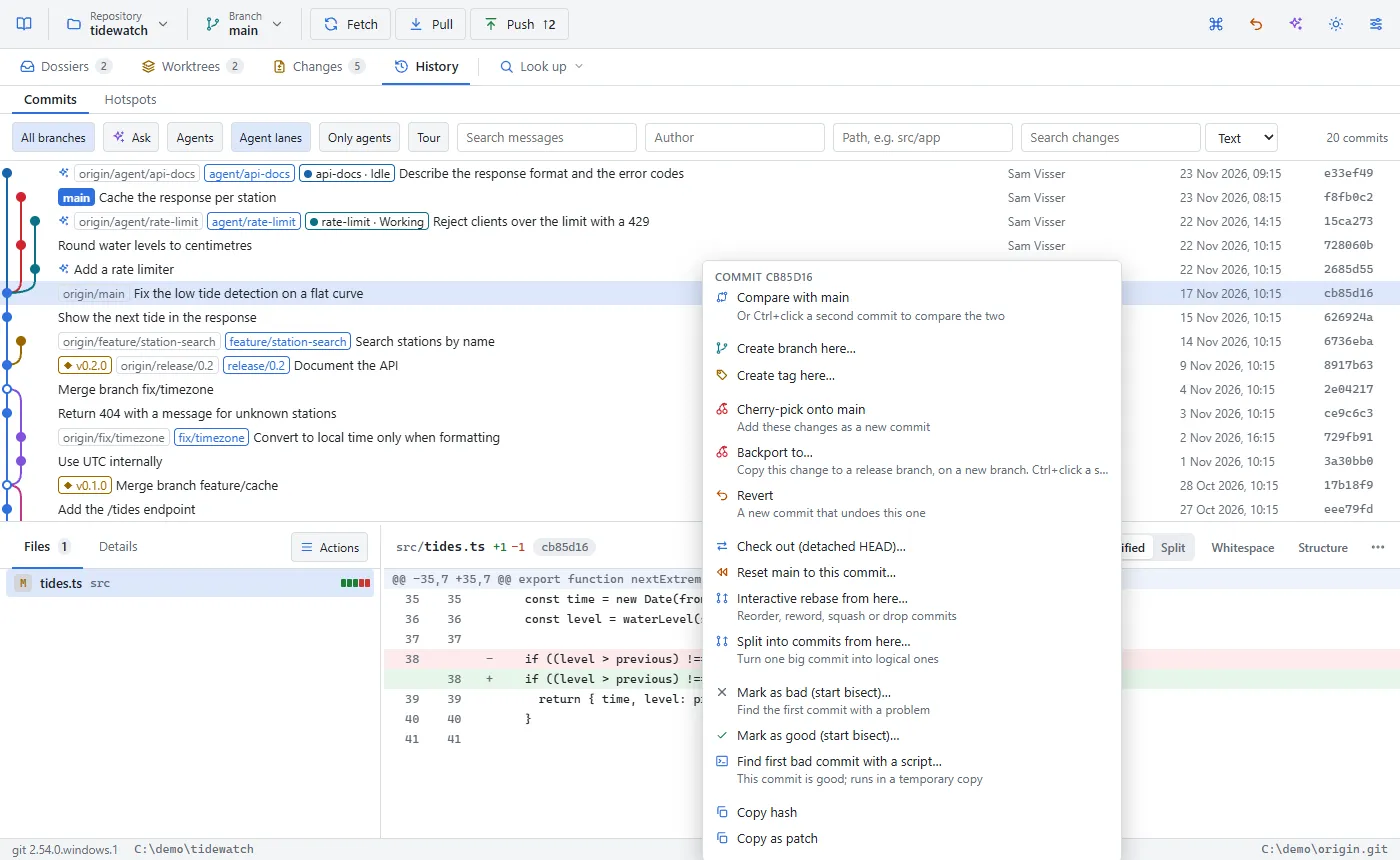
| Action | What it does | Rewrites history? |
|---|---|---|
| Create branch here… | Starts a new branch at this commit | No |
| Create tag here… | Puts a tag on this commit, for example v1.2.0: light, with a message, or signed (see Sign your commits and tags) |
No |
| Cherry-pick onto main | Copies this commit’s changes onto your branch as a new commit | No |
| Backport to… | Copies this commit to another branch, such as a release branch, on a new branch of its own | No |
| Revert | Adds a new commit that undoes this one | No |
| Check out (detached HEAD)… | Looks at the project as it was at this commit | No |
| Reset main to this commit… | Moves your branch back to this commit | Yes |
The name of your current branch is in the menu, so you can see where the action will land.
Cherry-pick: take one commit along
Section titled “Cherry-pick: take one commit along”A fix was made on a feature branch, and you need it on main now, without the rest of that branch.
Switch to main, right-click the commit, and choose Cherry-pick onto main. The app applies the
same changes as a new commit with the same message. The original stays where it was.
If the code around it has changed, git may not be able to apply it cleanly. The bar at the top then says Cherry-picking onto main, and you resolve the conflict in the merge editor.
Backport: take a fix to a release branch
Section titled “Backport: take a fix to a release branch”A fix landed on main, and version 1.4 still has the bug. Normally you would switch to release/1.4, cherry-pick, and
resolve conflicts with your own working folder in the way. Backport to… does it on the side, so neither your working
folder nor the release branch is touched.
- Right-click the commit and choose Backport to…. The dialog is called Backport this commit.
- Choose the Target branch. Local branches are listed, and remote branches that look like a release (such as
origin/release/1.4, when you have no local copy), with the release branches first. - The app checks the target. A commit that the target already has is marked already in the target (same change). That is judged by the content of the change, not the hash (see Same change in another commit), so it works after a rebase or an earlier cherry-pick. For a commit that is not there, the dialog says which branches contain it.
- Check the Branch name (the result is
backport/<target>/<name>) and press Backport.
The app makes a temporary worktree on a new branch that starts at the target, and cherry-picks with -x, which adds a line to the
message saying which commit it came from. The outcome is one of:
- Done: the new branch is ready. Look at it under Branches and merge it into the target yourself, or push it and open a pull request. Nothing else was changed.
- Conflict: the files are named and the backport stays, halfway, in its temporary worktree. Your own working folder and the
target branch are still untouched. You choose:
- Resolve in a new tab opens that worktree as a tab of its own. There the merge editor (and Claude) resolve the conflict, and the usual Continue of the bar at the top carries on; git then also does the rest of a series of commits.
- Abort this backport stops the cherry-pick and removes the temporary worktree and the new branch. If its tab is open, the dialog closes it first.
- Nothing to do: the target already has the change.
When the cherry-pick is finished after you resolved it, go back to the dialog (right-click the commit, Backport to…): it lists the backport as ready with Finish backport, which removes the temporary worktree and keeps the branch. The line in Undo appears at that moment. That only works when nothing is still running or unsaved in that tab.
Unfinished backports are offered again. Each time you open the dialog, it lists the backports that were left behind, also after you restarted the app, each with Resolve in a new tab, Finish backport or Abort this backport. When the temporary worktree is gone but a branch is left, the button says Clean up. The app never removes any of this on its own.
There is no snapshot, because there is nothing to restore, but there is a line in Undo: it deletes the new branch as long as it is still where the backport left it.
Several commits at once
Section titled “Several commits at once”A fix is often more than one commit. Click the first commit, then Ctrl+click a second one: everything in the list between the two is selected, and the menu says Backport N commits to…. The commits are cherry-picked oldest first, as one series. Merge commits are skipped (the dialog says how many), because a merge cannot be cherry-picked, and more than 50 commits are refused. The selection follows the order of the list, so on a branchy history a commit from a side branch can be in between: the dialog checks each commit, so you can see which ones the target already has.
For now one target branch at a time. It does not yet run tests on the result, put the backport in the merge queue, or finish from the tab of the worktree itself.
Revert: undo a commit, safely
Section titled “Revert: undo a commit, safely”A commit from last week turned out to be wrong, and it is already shared. Revert adds a new commit that does the exact opposite of it. History keeps both, so nobody who already has the old commit is surprised. This is the right way to undo something on a branch other people use.
Check out: have a look
Section titled “Check out: have a look”Check out (detached HEAD)… shows you the project as it was at that commit. The dialog explains the catch: HEAD will be detached, not on a branch. Commits you make now belong to no branch and are easy to lose. To keep working there, create a branch first. If you lose track, see Lost & found.
Reset: move the branch back
Section titled “Reset: move the branch back”Reset moves your current branch to another commit. How much comes along depends on the mode, which is why the dialog asks and explains.
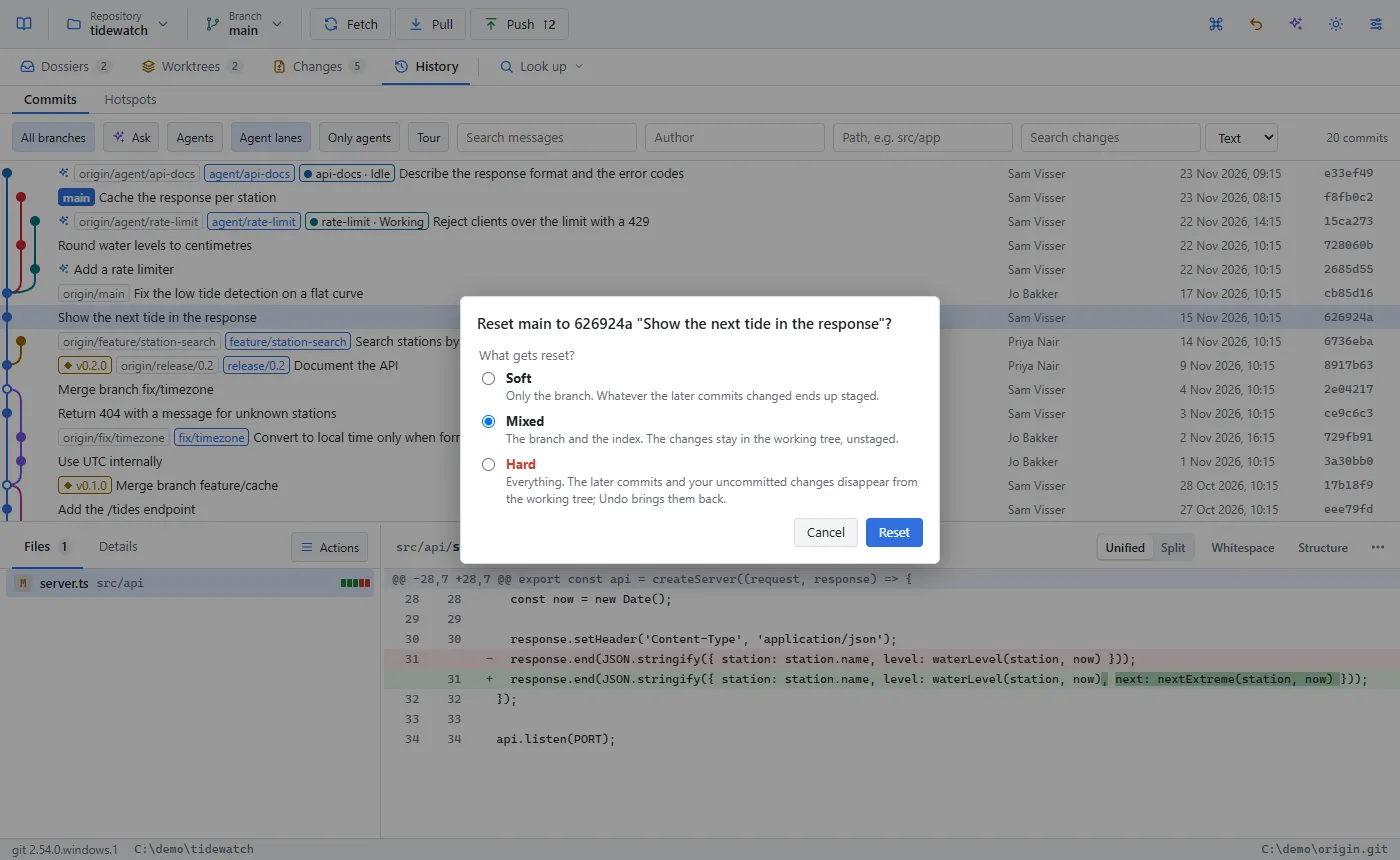
- Soft: only the branch moves. The changes of the commits you stepped over end up staged, so you can commit them again differently. Good for “I want to redo these commits as one”.
- Mixed (the default): the branch and the staged changes move. The changes stay in your files, unstaged.
- Hard: everything. The later commits and your uncommitted changes disappear from your files. The dialog shows this one in red.
Reset is the one to be careful with
Section titled “Reset is the one to be careful with”Reset is the only action in the menu that rewrites history. If the commits you step over are already pushed, you will have to force-push, and anyone who has them has to repair their copy. Prefer Revert on shared branches.
It is also forgiving here:
- Undo (
Ctrl+Shift+Z) puts the branch back, also after a hard reset. - Before a hard reset, the app saves a snapshot of your uncommitted work.
- The commits you stepped over are in the reflog, listed in Lost & found.
Share a change as a patch
Section titled “Share a change as a patch”Sometimes you want to hand someone a change without a remote: in an email, a chat, or a USB stick. A patch is the change as text.
- A commit: right-click it and choose Copy as patch or Save as patch…. The patch has the author, the date and
the message, so a colleague can apply it with
git amand the commit arrives as you made it. A merge commit has no patch of its own, so you get a plain diff against its first parent. - A comparison: in Compare, Copy patch and Save patch… give the diff you are looking at as
one patch, for
git apply. That is the diff since the merge base, or the direct one, depending on what you chose. - Staged changes: right-click the Staged list in Changes and choose Copy staged changes as patch or Save staged changes as patch….
Save as patch… opens the save dialog of your system with a name such as a1b2c3d-fix-the-login.patch, and writes the
patch byte for byte. Copy puts it on the clipboard as text. If a file in the patch is not UTF-8 (a file in an older
encoding), copying would change those bytes, so the app asks you to save it instead. Binary files are included. A patch
larger than 32 MB is refused; share a branch instead.
Under the hood
Section titled “Under the hood”| In the app | In git |
|---|---|
| Create branch / tag here | git branch <name> <hash> / git tag [--annotate or --sign --message …] <name> <hash> |
| Cherry-pick | git cherry-pick <hash> |
| Revert | git revert <hash> |
| Check out | git switch --detach <hash> |
| Reset (soft, mixed, hard) | git reset --soft, --mixed, --hard <hash> |
Related
Section titled “Related”Interactive rebase changes several commits at once. Compare shows what two commits or branches differ in before you pick, revert or reset.