Runs, issues and pull requests (Repository tab)
The problem
Section titled “The problem”You push, and then you wait. Did the CI start? Did it pass? Is there a pull request waiting for you, or a new issue? The answers live on the forge’s website, and looking them up means leaving the app, finding the repository and clicking through to the right page.
What it shows
Section titled “What it shows”Open Repository from the Look up menu. It opens as a tab next to your work, and you can leave it again like any other tab. It reads from the forge behind the remote of the active repository: GitHub, GitLab, Forgejo or Codeberg. It has three lists:
- Latest runs: the last 15 CI runs, newest first. Each line has the result (Passed, Failed or Running, or No verdict for a cancelled or skipped run), the title, the branch, the short commit hash and the start time. A run that failed also has a red edge, so the word is not the only sign.
- Open pull requests (on GitLab: merge requests): the number, the title, the branches (
feature → main), the author, and draft when it is one. - Open issues: the number, the title, the author and how many comments it has.
Each list shows at most 15 lines.
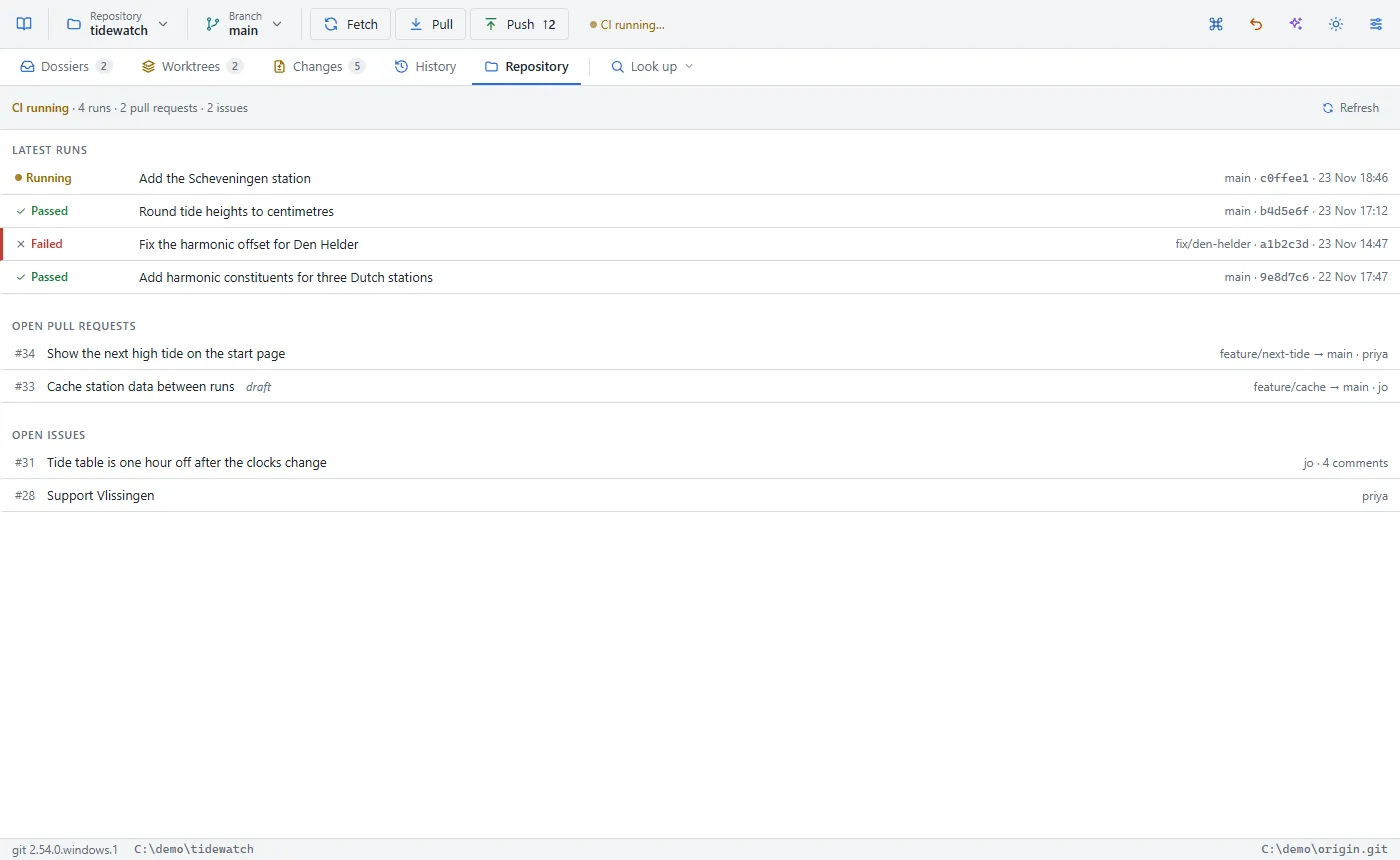
Click a line to open it on the forge, in your browser. The tab only reads: you can’t comment or merge from here.
At the top, a line counts what is there, and says CI running while a run is still going. Refresh asks the forge now.
Following a push
Section titled “Following a push”After a successful Push (or Publish) the top bar, next to the sync buttons, follows the run that your commit starts on the forge:
- Waiting for CI…: the forge has not started a run for this commit yet. The app asks every few seconds.
- CI running…: the run is going. The app asks every 15 seconds.
- CI passed or CI failed: the run is done. The note stays for half a minute, or until you click it.
Click the note to open the Repository tab, where the run is listed. This works with the tab closed, and nothing else on your screen changes. Press it once the run is done to dismiss it.
Some things to know:
- If no run shows up within three minutes, the app stops waiting. Many repositories have no CI at all, and then there is nothing to follow.
- The app follows only the commit you pushed. A run on another commit of the same branch is shown in the list but is not the one in the bar.
- If the app restarts while it is waiting, it picks the push up again when you open the same repository, as long as the push is less than half an hour old. The forge knows how far the run is, so nothing else needs to be saved.
- Fetch and pull never start following; only a push does.
How often it asks
Section titled “How often it asks”The app asks the forge only while the tab is open or a push is being followed: every 15 seconds while a run is going, otherwise every 90 seconds. Right after a push it asks every 5 seconds for a few minutes, to catch the run as it starts. If the forge says you are asking too often, or does not answer, the tab shows a note and slows down by itself; the lists you already have stay on screen.
Without a token the forges allow very few requests (GitHub: 60 an hour). If the tab says the forge did not let the app in, or asks you to slow down, add a token: see Forge tokens. For an HTTPS remote the app uses the login git already has.
When the lists are empty
Section titled “When the lists are empty”The page says why, in one line, instead of showing a blank list:
- No forge: the remote is not on a forge the app knows (for example a plain SSH server, or Bitbucket). Add the server under Forge tokens and pick its kind if it is your own GitHub, GitLab or Forgejo.
- The forge did not let the app in: the repository is private and there is no token, or the token is missing a right. See Forge tokens.
- Asked to slow down: you reached the limit. It tries again by itself.
- Did not answer in time: the forge was slow or gave an error. A big repository on a busy forge can take half a minute to list its pull requests. The lists that did arrive are shown, and the others keep what they had.
What the app does
Section titled “What the app does”Everything goes through the forge’s web API, with the same login or token as pull requests and CI status. There
is no git command in this tab, so nothing shows in the Command log.
The tab never stores anything on your computer, except the commit of the push it is following.